

This guide walks you through the process of adding a VW MQB49 5C or 5D key using the Xhorse VVDI Key Tool Plus, a VW 5D dedicated adapter, and either an original key or a VVDI dedicated key.
What You’ll Need
- Xhorse VVDI Key Tool Plus
- VW 5C/5D solder free adapter
- Original vehicle key or VVDI dedicated 5D key (not available yet)
NOTE:
For 5C system, you can generate Xhorse VVDI XS smart key, XM38 series smart keys and original keys.
For 5D system, need to use original key or VVDI 5D dedicated key.
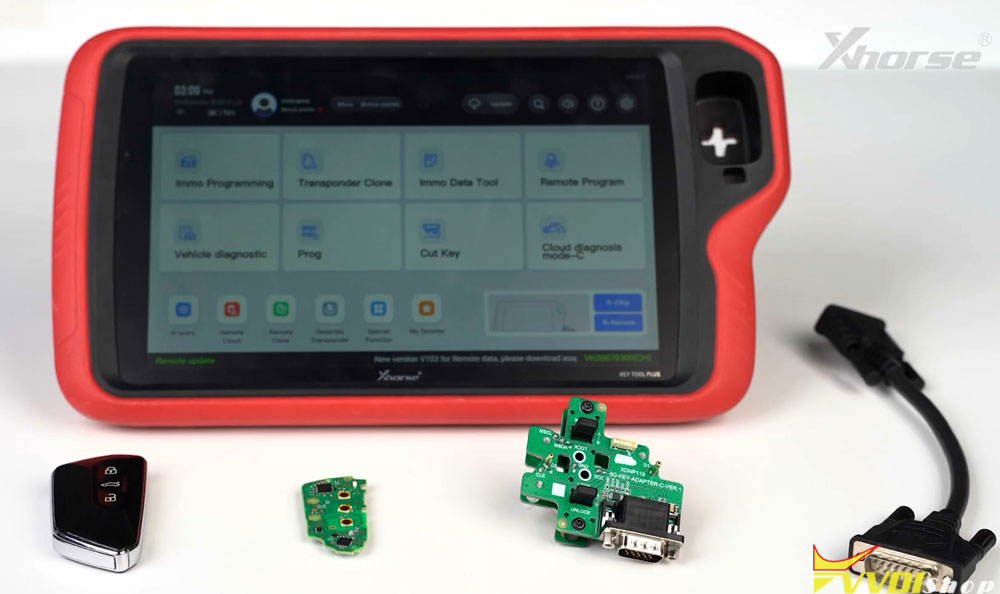
Step 1: Reading the Original Key
The first step is to read the data from the original vehicle key. This data is essential for generating a new working key.
Place the original key into key tool plus the induction coil and read key information. It’s an MQB49 5D smart key.
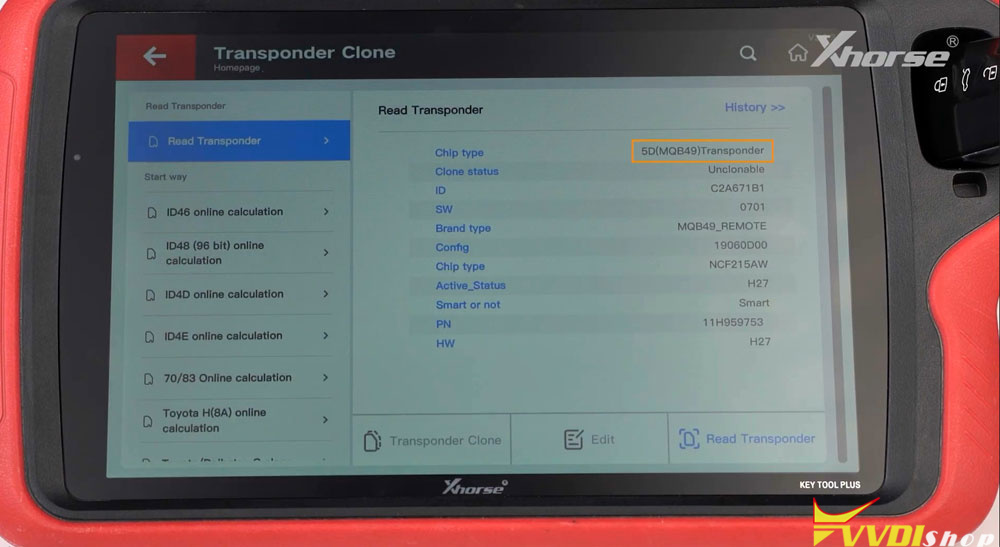
Begin by accessing the IMMO programming menu on the Key Tool Plus.
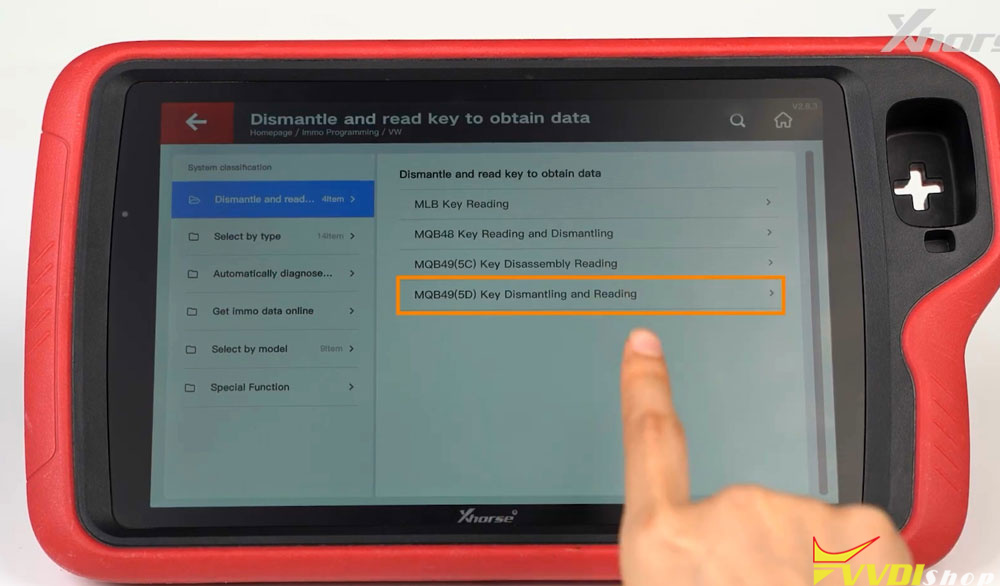
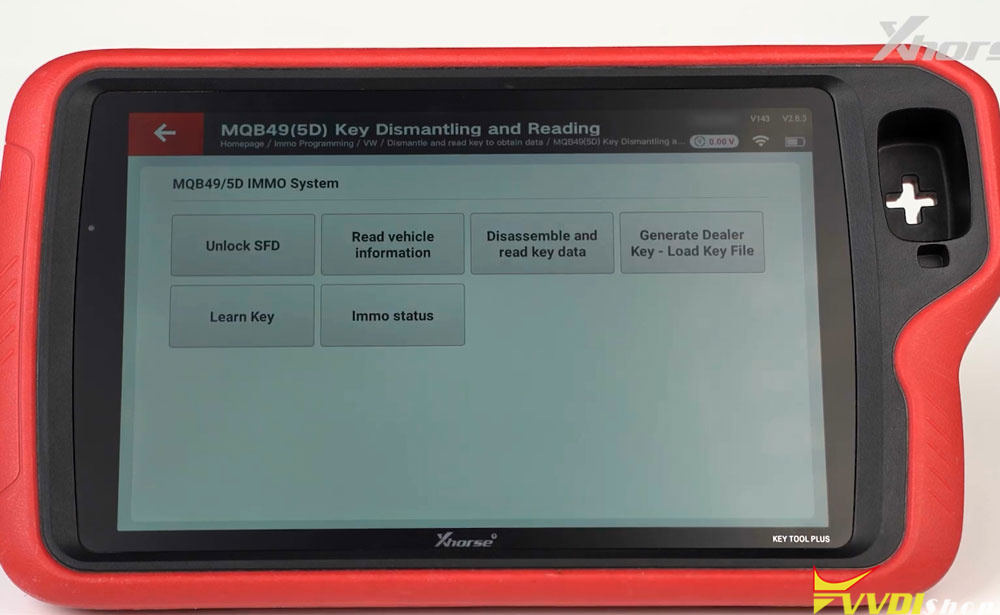
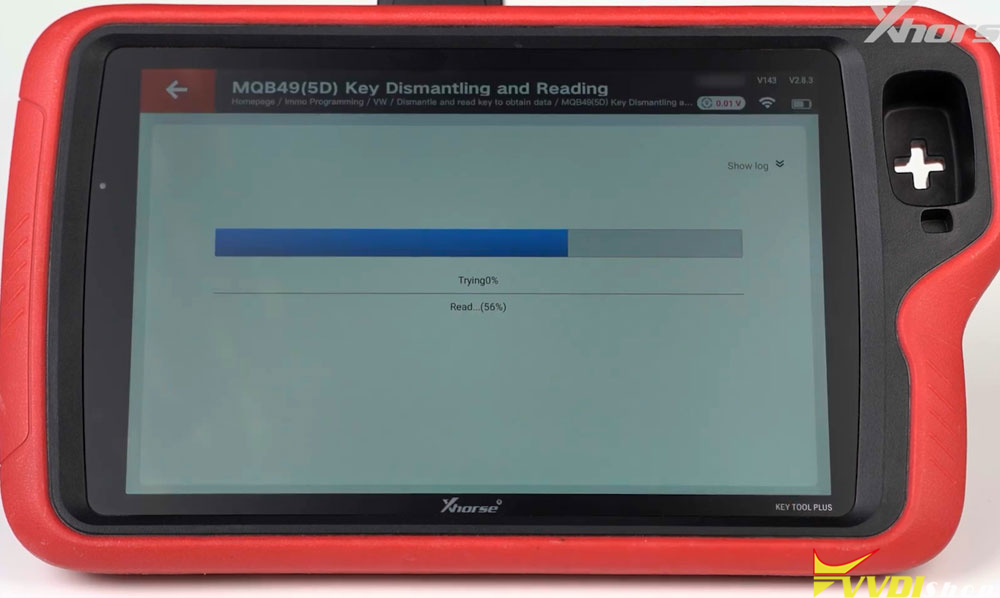
Select VW-Dismantle and read key to obtain data- MQB49 (5D) key dismantling and reading.
Tap Start Programming, then choose Disassemble and read key data.
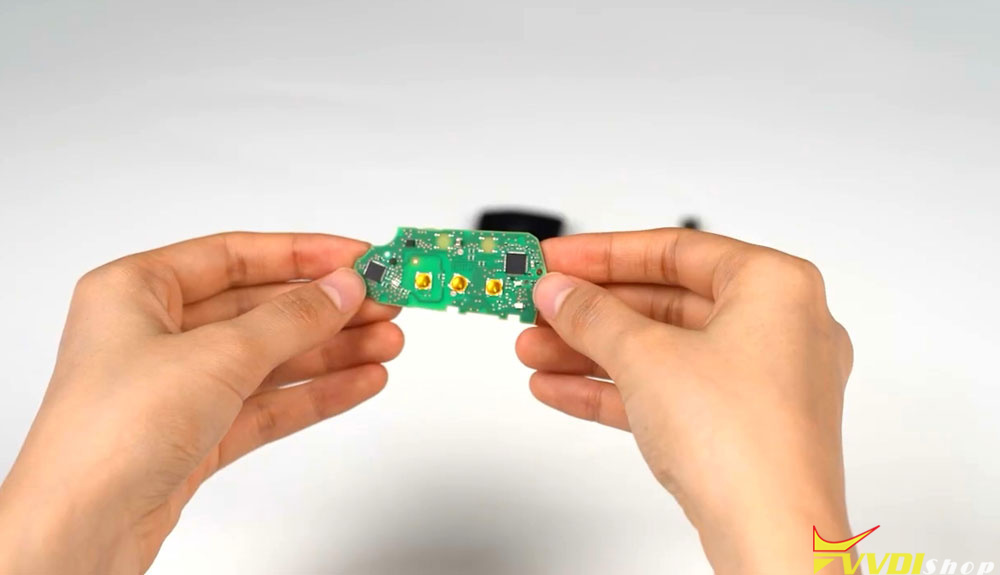
Carefully disassemble the original key to remove the PCB (printed circuit board).
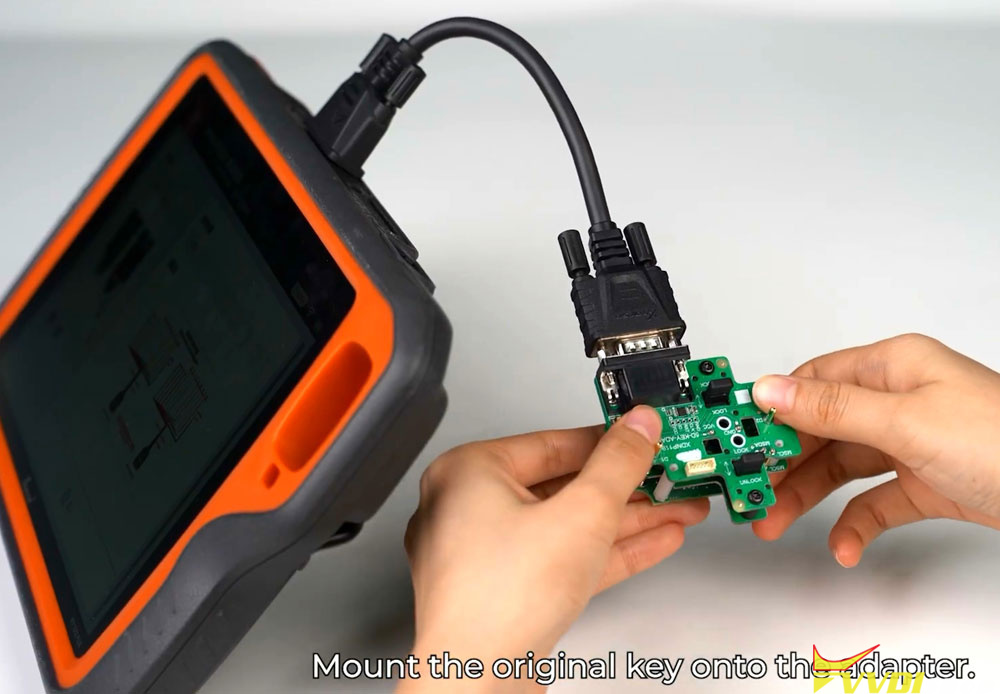
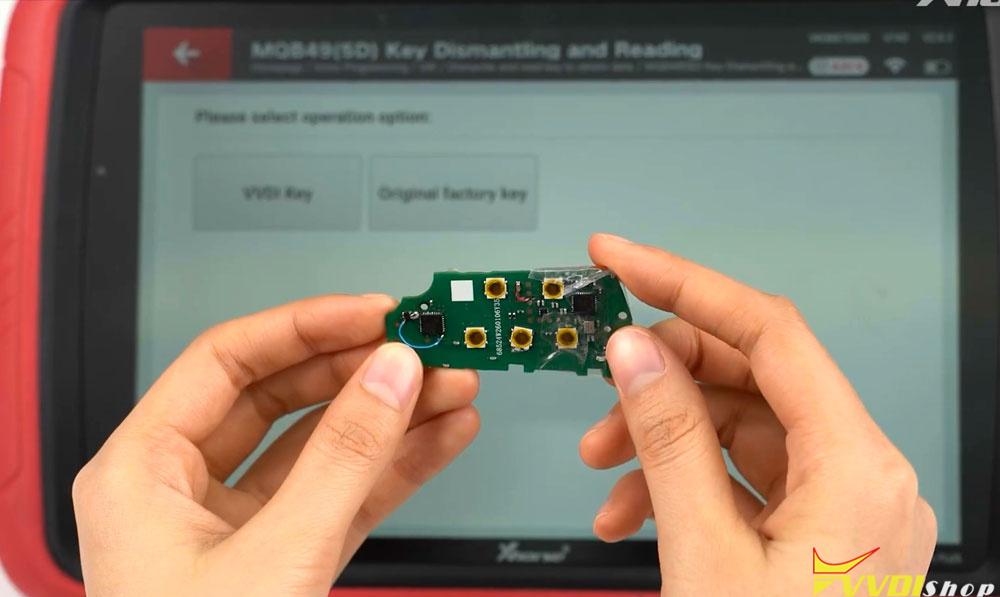
Note the white area on the adapter, which indicates the correct placement for the key. Position the original key’s PCB onto the adapter and secure it.
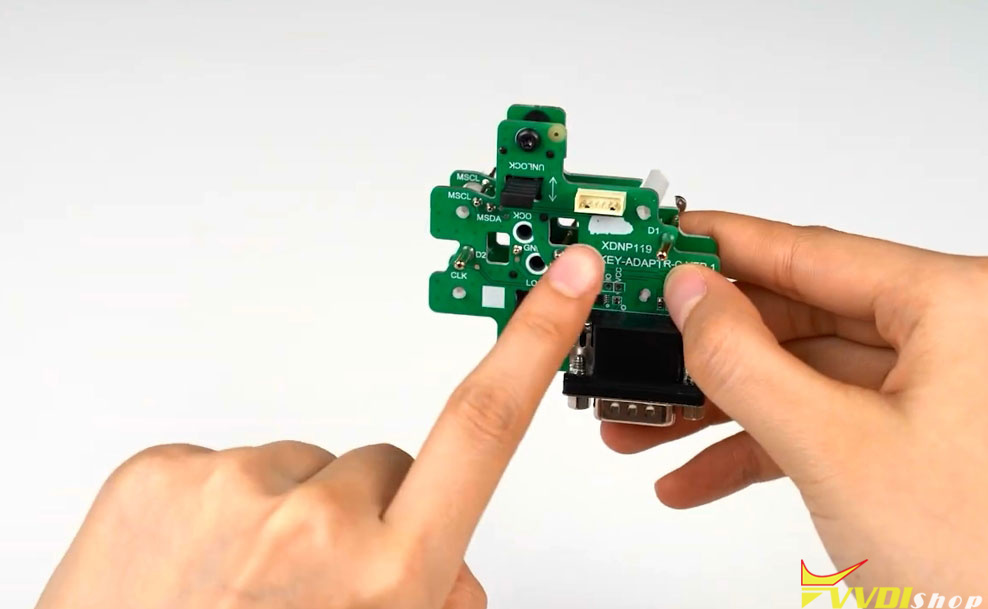
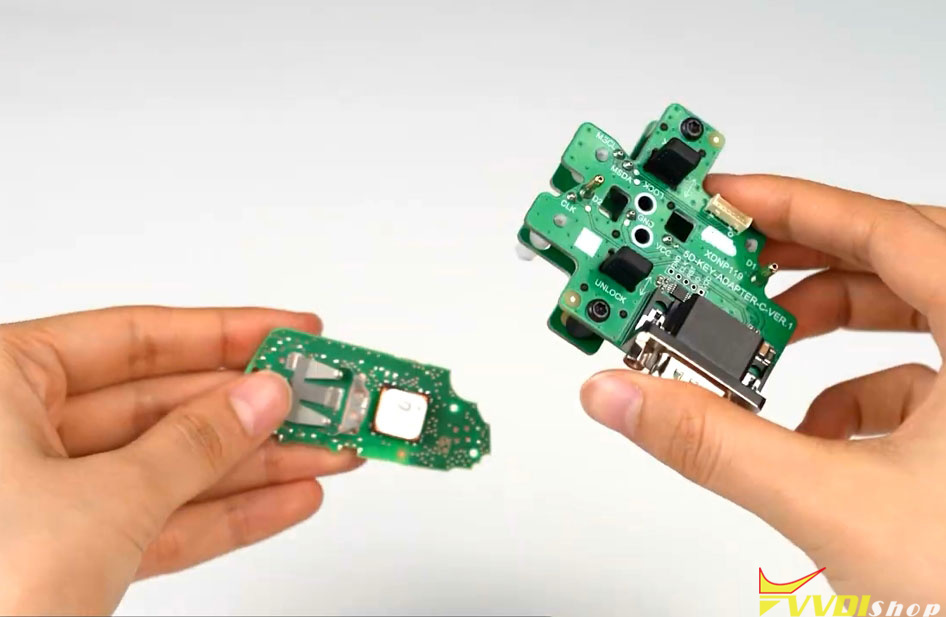
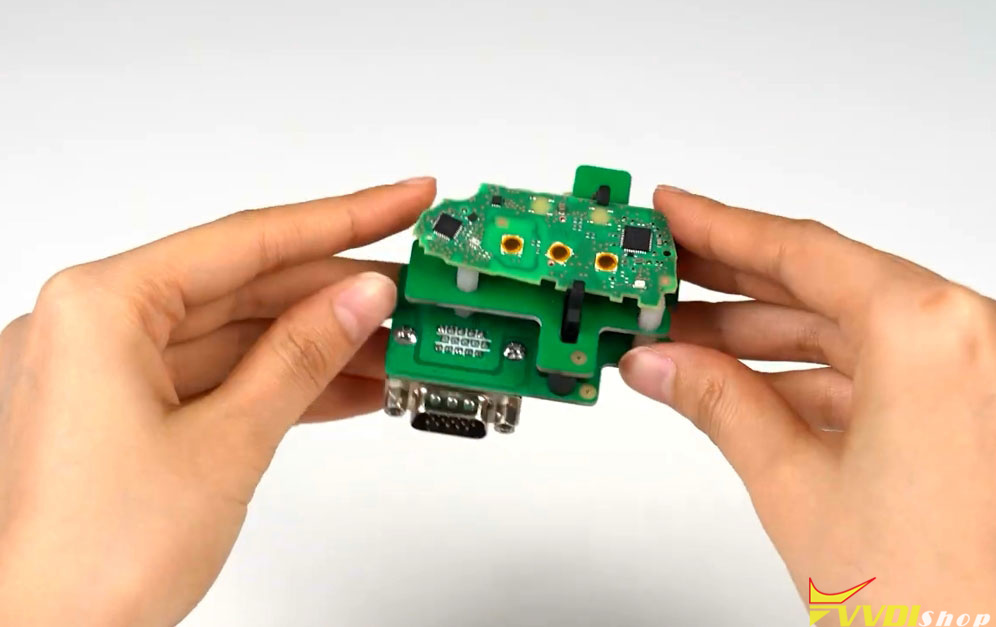
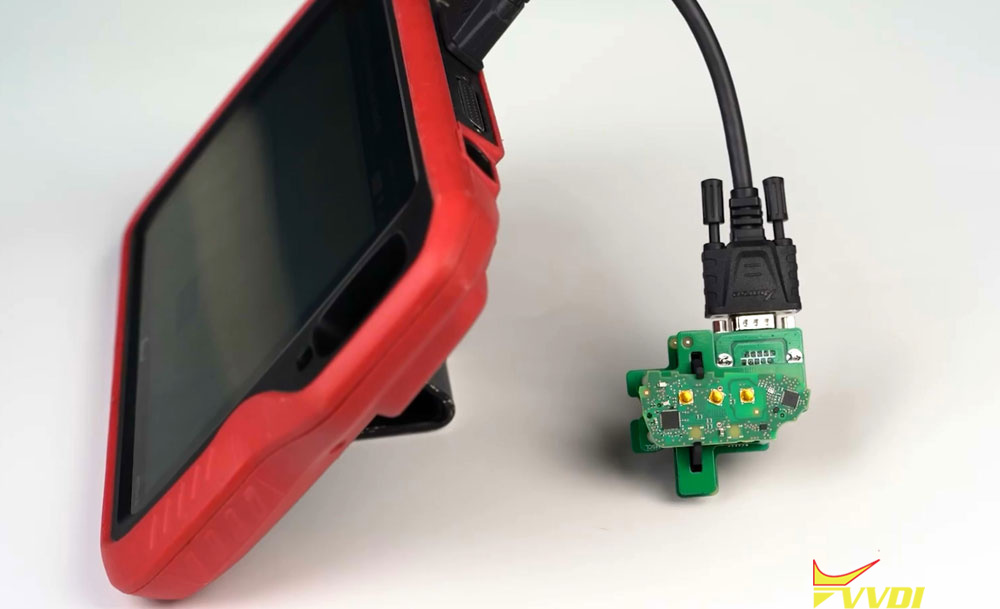
Connect the adapter to the Key Tool Plus and tap Read. Once the key information is successfully read, click OK.
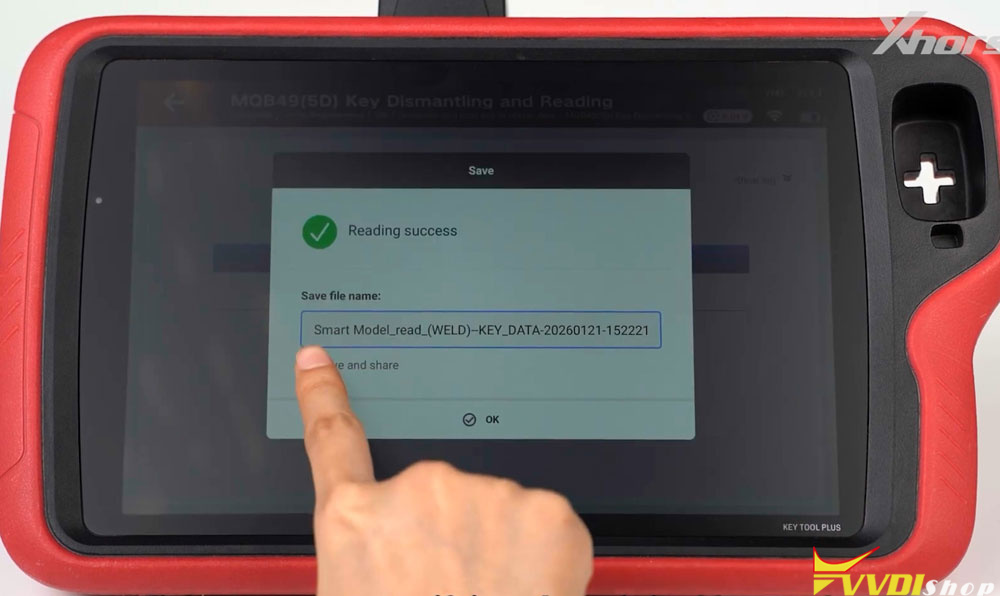
Step 2: Verifying the Original Key Code
After reading the key data, verification is required.
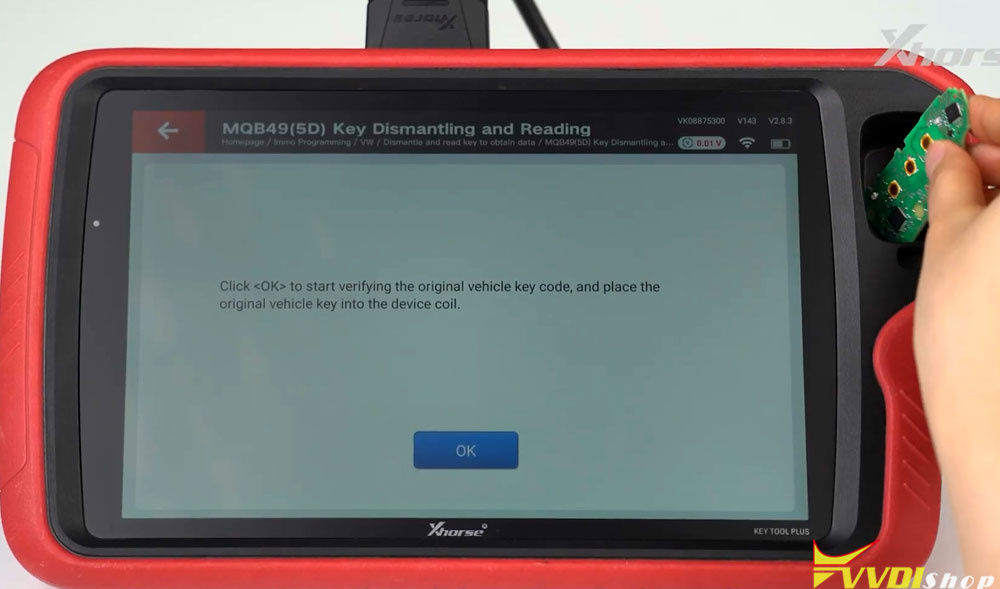
Remove the original key from the adapter and place it into the device coil.
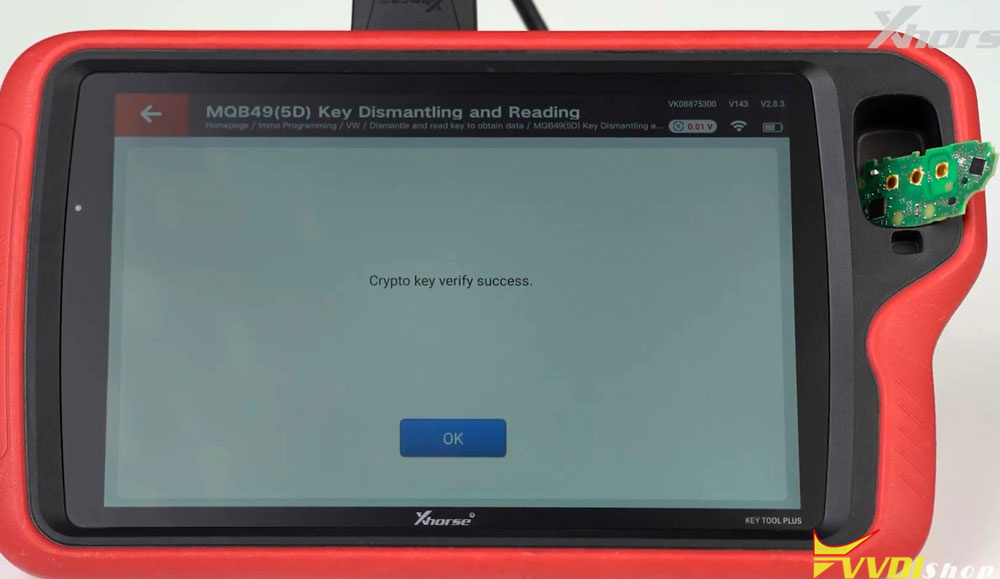
Tap OK to begin verification. A successful verification will display a confirmation message.
Step 3: Generating a Dealer Key
There are two methods to generate a new dealer key.
Method 1: Using the Original Key
Click OK to load the previously read key file.
Mount the original key back onto the adapter, ensuring a secure connection.
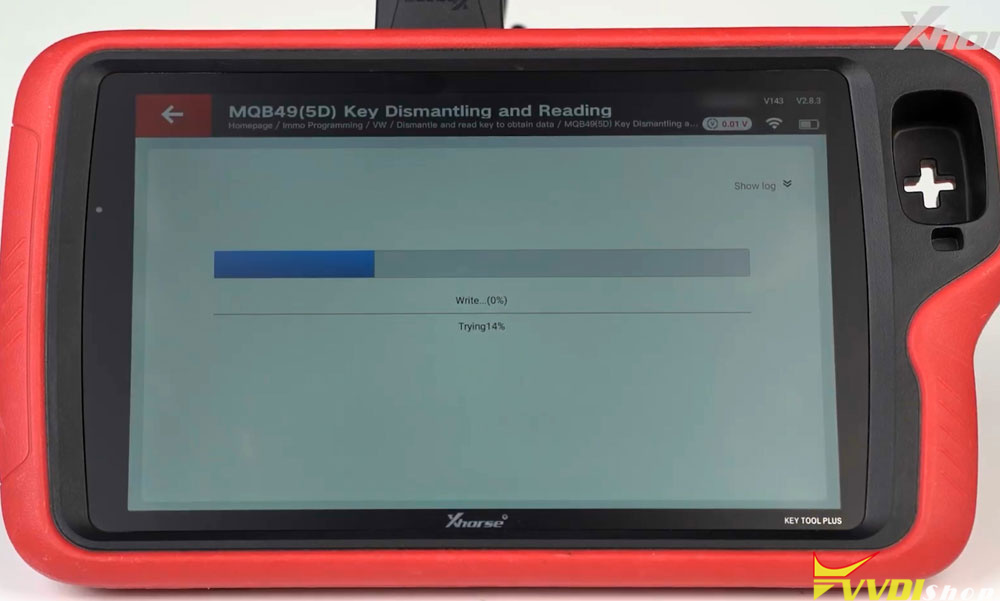
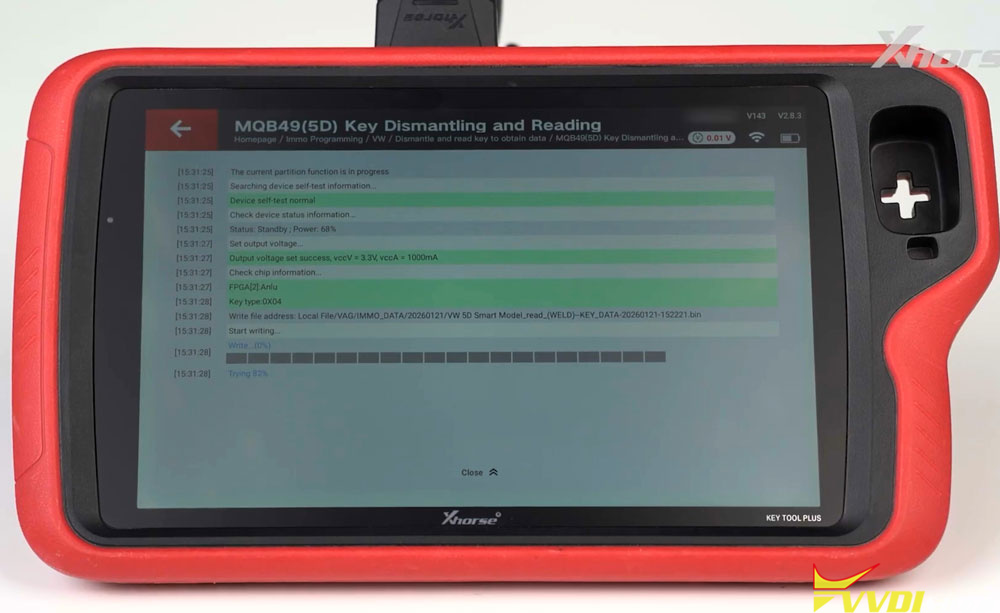
Tap Continue to start the writing process. A “Write successful” message confirms completion.
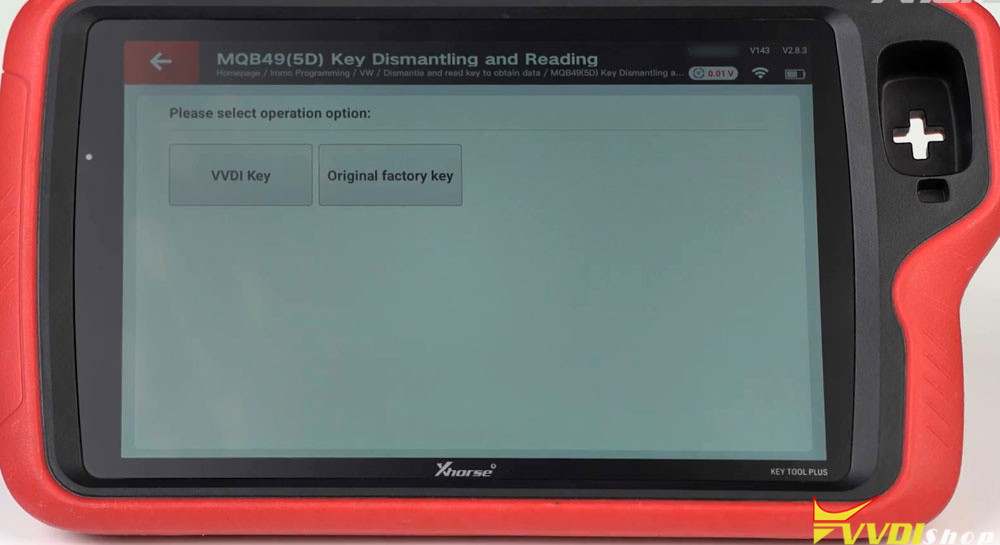
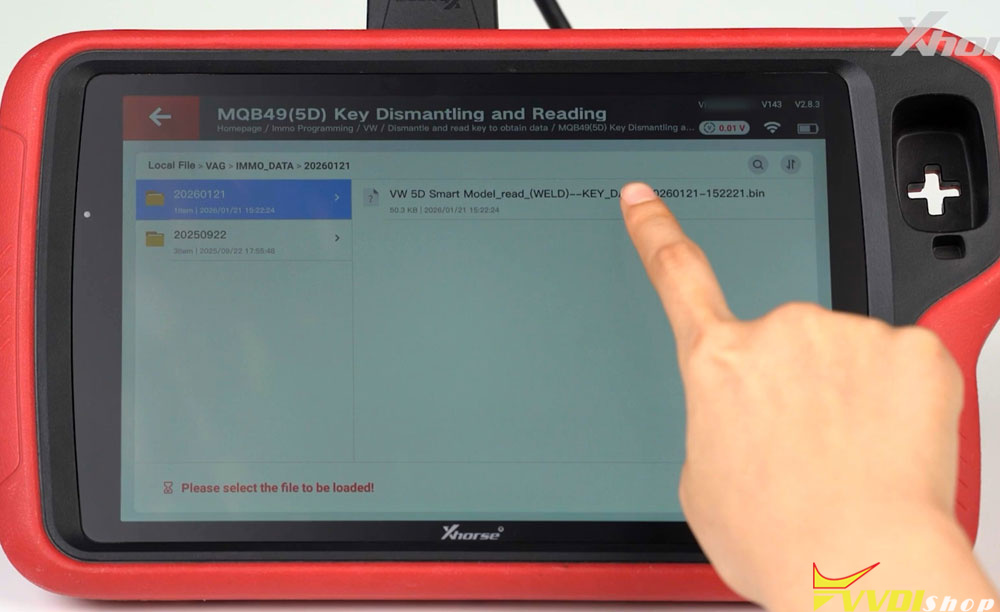
Method 2: Using a VVDI Dedicated Key
Tap the VVDI Key option and click OK.
Load the previously read key file by locating and opening the corresponding file.
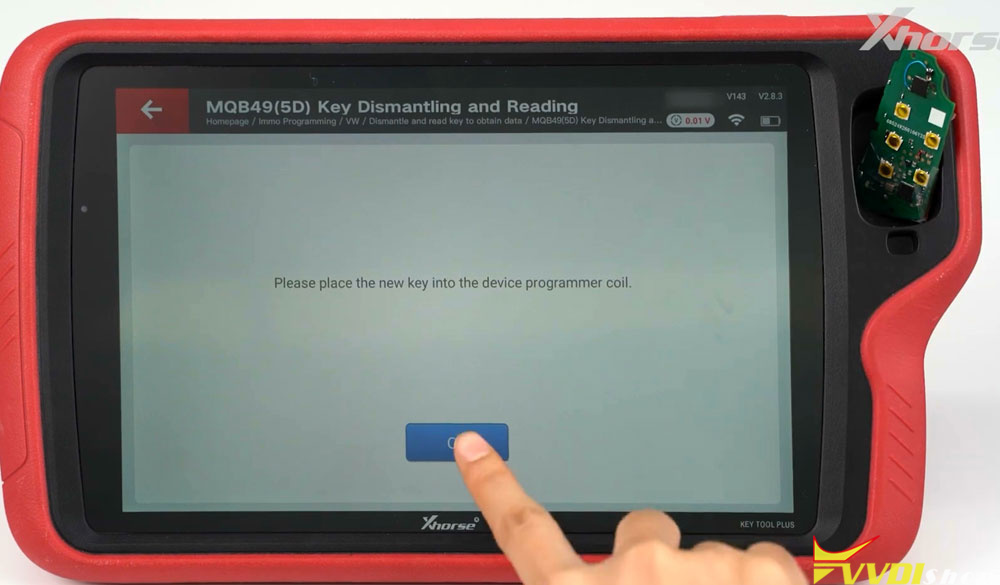
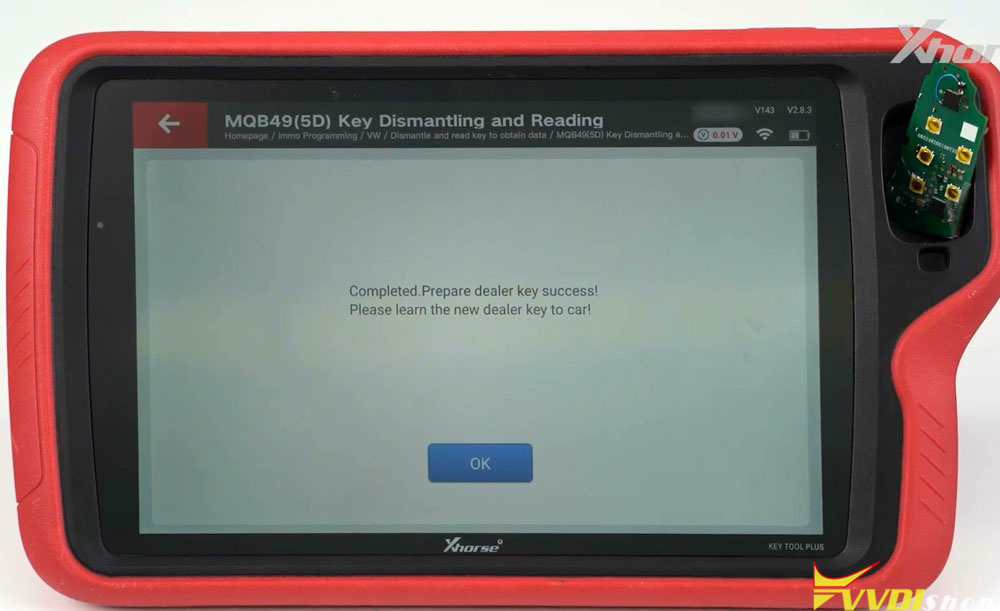
Place the VVDI 5D key into the device coil and click OK. The system will confirm when the key is generated successfully.
Step 4: Learning and Testing the Key
With the new key generated, the final step is matching it to the vehicle.
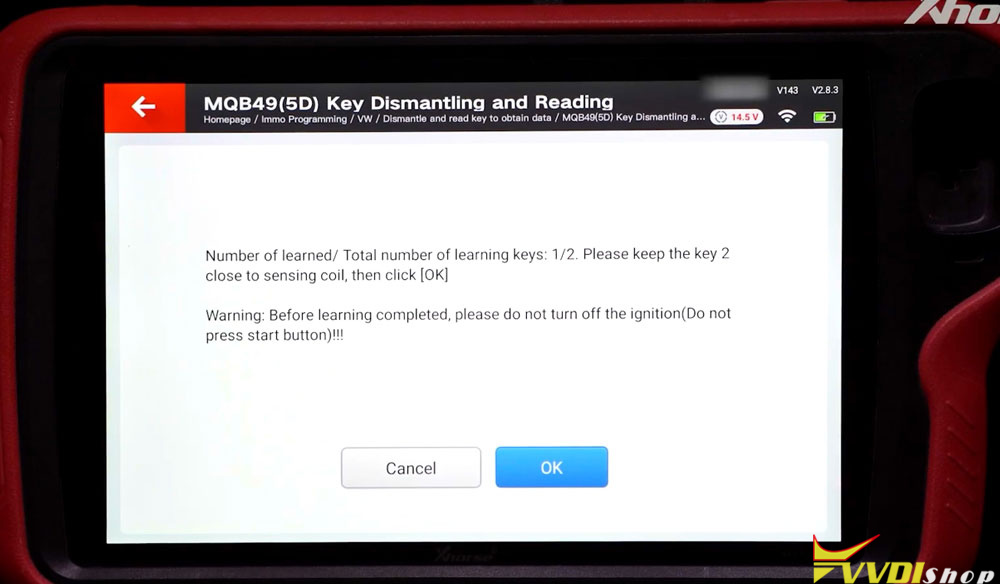
Place the original vehicle key into the vehicle’s sensing coil.
Tap Learn Key, then click OK to load the read key file.
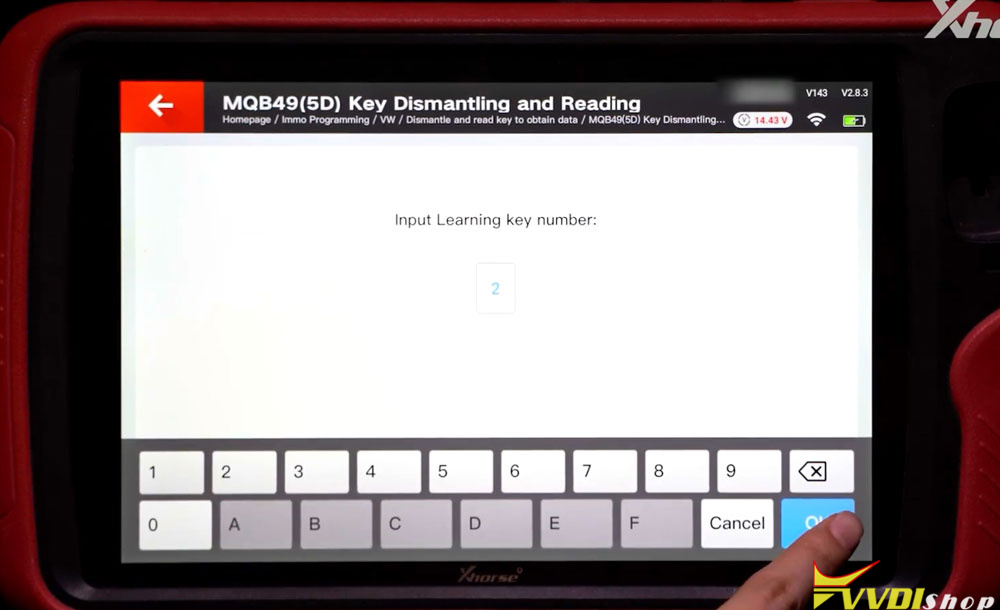
Input the number of keys to learn and click OK.
After a successful learning process, place the newly generated key (original or VVDI) into the sensing coil.
Note: The key placed in the sensing coil must have a battery installed.
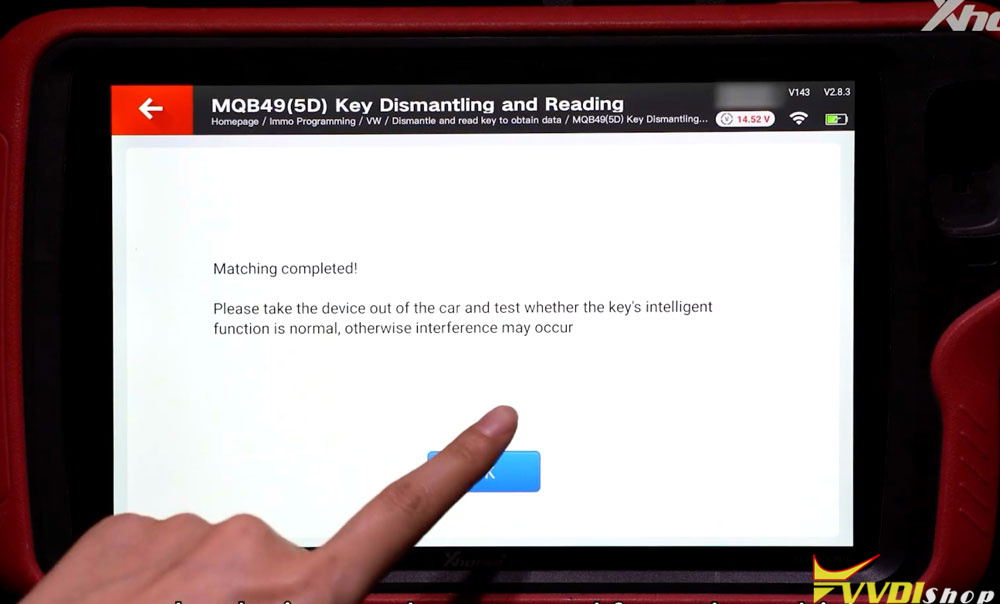
Click OK and wait for the matching process to complete.
Once matching is finished, remove the device from the vehicle and test the key functions. The push-button start and remote functions should operate normally. The VVDI key follows the same matching process as the original key.
Conclusion
Adding a VW 5D key with Xhorse tools is a straightforward process when following the correct steps—from reading the original key and generating a dealer key to matching and testing. With both original and VVDI key options, this method provides flexibility and reliable results.
Video guide: