


If you’re facing a Ford Bronco sport with all keys lost (2024 or 2025 model), the job is absolutely doable with the Xhorse VVDI Key Tool Plus. This guide covers both scenarios:
-
Adding a key when at least one working key exists
-
All keys lost – when the system already has the maximum number of keys stored
We’ll walk through the exact steps, including how to clear all keys and program new ones.
NOTE:
It’s a Bronco Sport not Bronco = old system.
The level of encryption is the difference. The Bronco is the top of the line for ford so naturally it has the highest level of encryption and security and likely won’t be supported through OBD without the proper tool or dealer-level equipment.
You don’t need nastf for this year and model. You will need it for full-size Broncos. The system in the Bronco Sport is the same as that of an Escape in which you don’t need FDRS. This programmer will not do newer 21+ f150 models. Not required to connect to getaway and no nastf.
What You’ll Need
-
Blank smart key(s) (compatible with Ford Bronco)
-
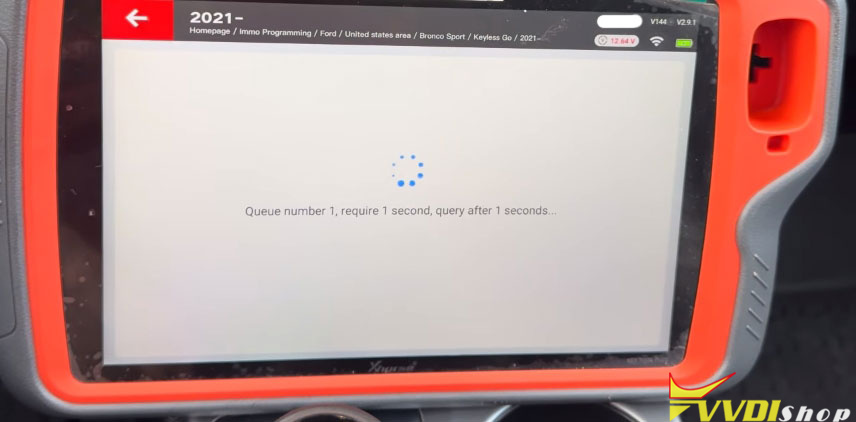
Stable, fast internet connection (critical for reading D‑Flash)
-
Driver door accessible (must be opened/closed during procedure)
The vehicle in this example already had the maximum number of keys learned. That means a standard “add key” will fail – you must use the all keys lost procedure and program at least two keys.
Step 1: Enter the Vehicle and Prepare
-
Sit in the driver’s seat with the door closed.
-
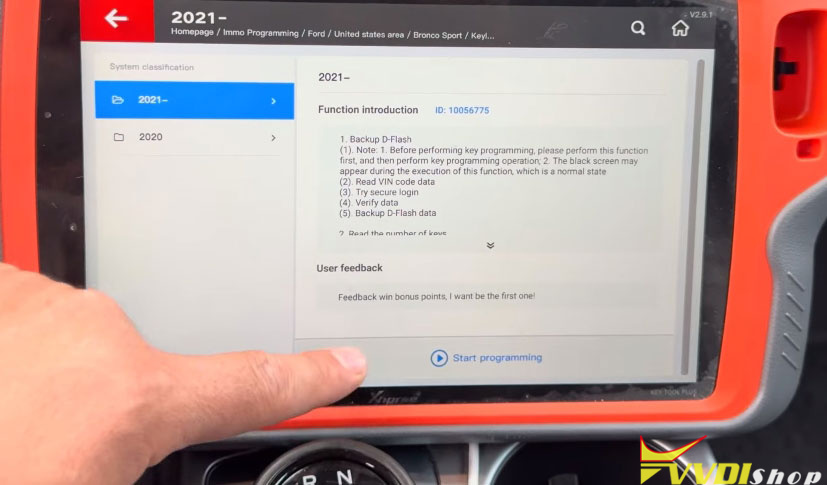
On the Xhorse Key Tool Plus, navigate to:
Programming – North America – Ford –United States – Bronco – Keyless Go – 2021+
-
Select Start Programming.
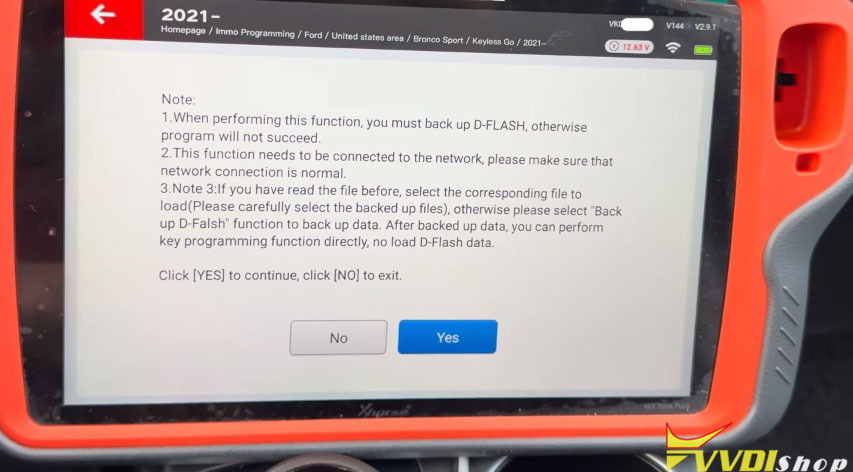
Step 2: Back Up the D‑Flash (Required)
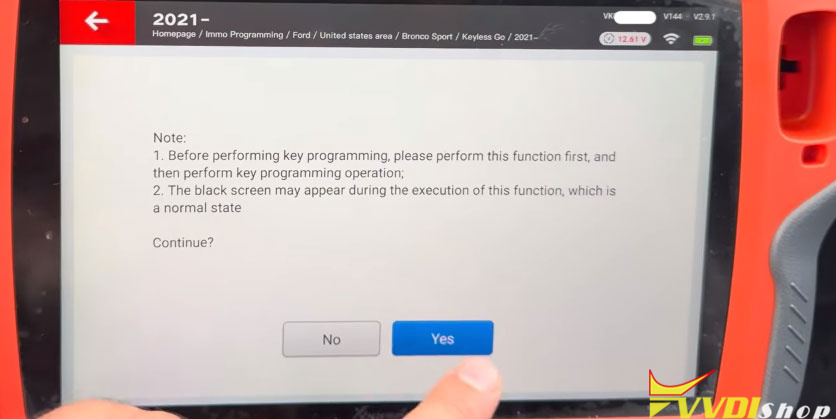
Before adding or clearing keys, the tool will back up the vehicle’s D‑Flash data.
-
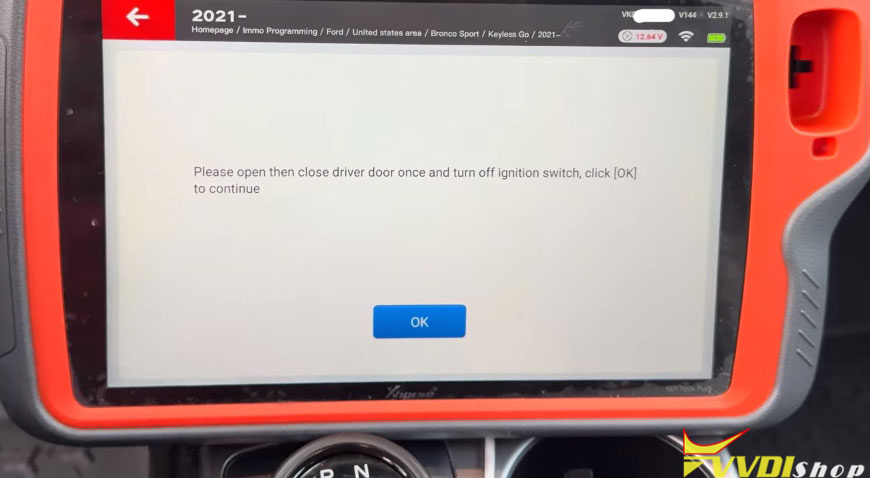
Follow the on-screen prompt to open and close the driver door once, then keep it closed.
-
Press OK to back up the D‑Flash.
-
Save the file (the technician in the video saves by date/time – renaming is optional).
-
Wait for Backup Successful.
A fast, stable internet connection is essential here. Poor connection will cause the D‑Flash read to fail.
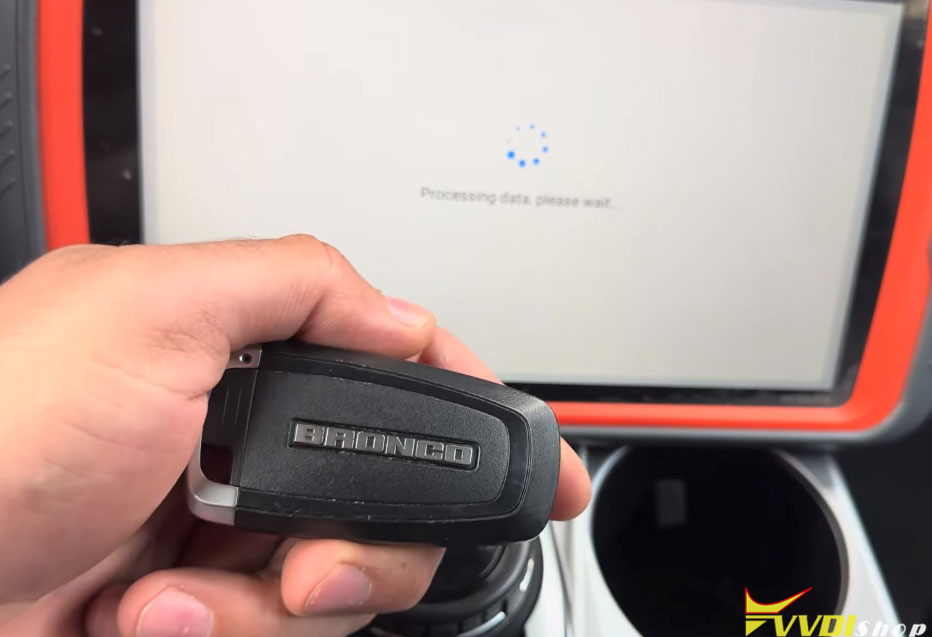
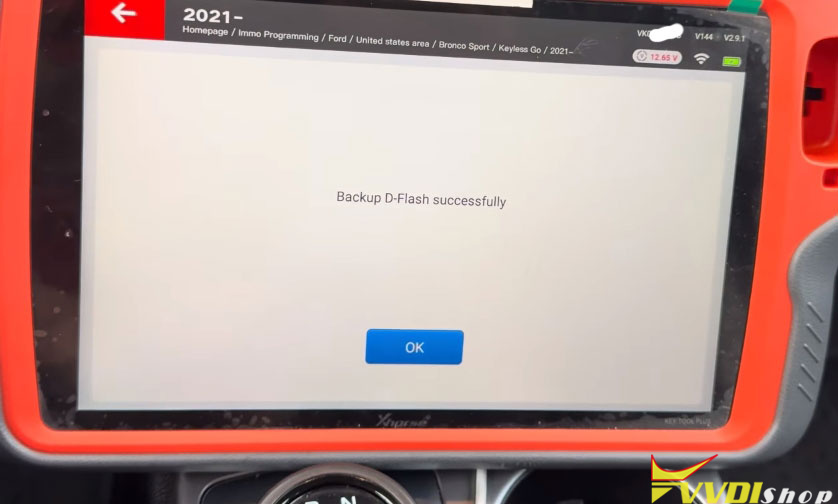
Step 3: Attempt to Add a Key (Will Fail if Max Keys Are Reached)
If you try to add a key when the system is full, you’ll see an error:
“Vehicle max key learning”
This means the Bronco has already reached its limit of stored keys. In that case, you cannot simply add a new key – you must switch to the all keys lost procedure.
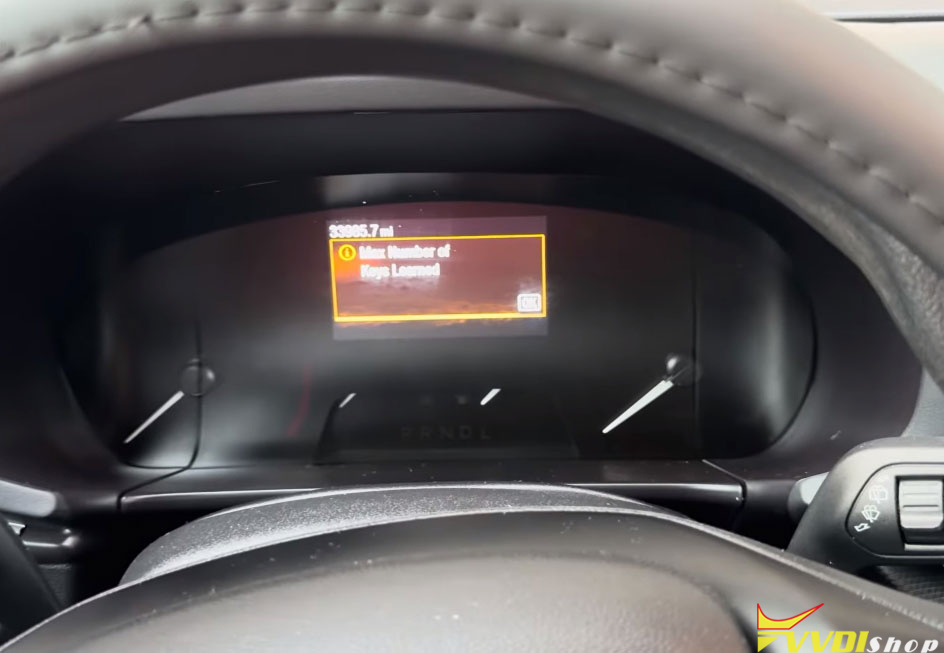
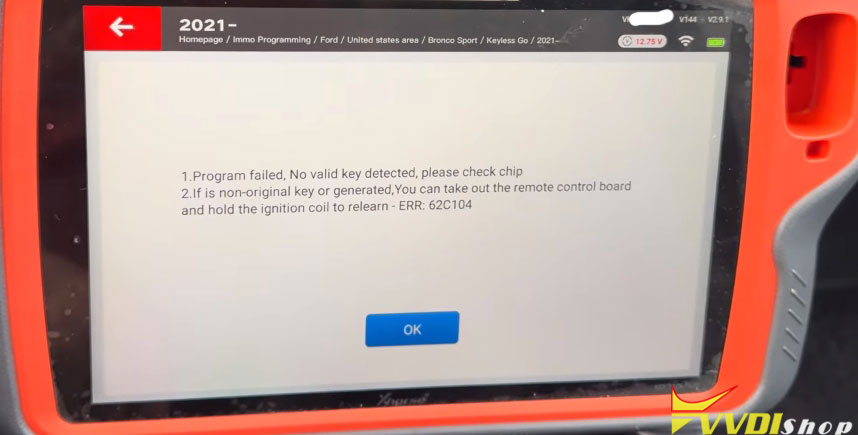
Step 4: All Keys Lost – Clear All Keys and Program New Ones
Now we will erase all existing keys from the system and then learn new keys.
4.1 Start the All Keys Lost Function
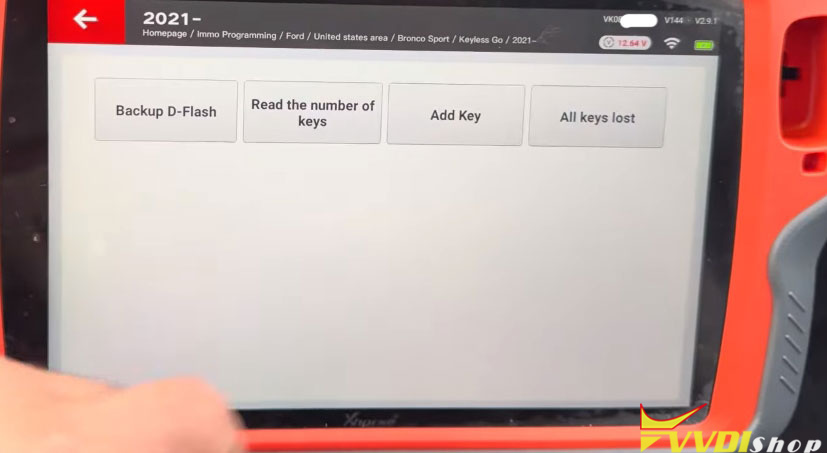
From the same menu, select All Keys Lost.
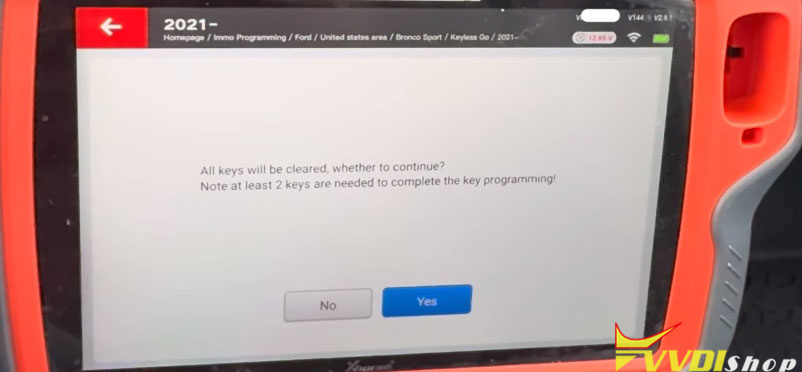
The tool will warn you that it will clear all keys first, then learn new ones.
Press Yes to continue.
4.2 Clear All Keys from the System
The tool will access the system and clear every key.
Wait for the confirmation:
Clear successful – 0 keys on the system.
4.3 Learn the First Key
-
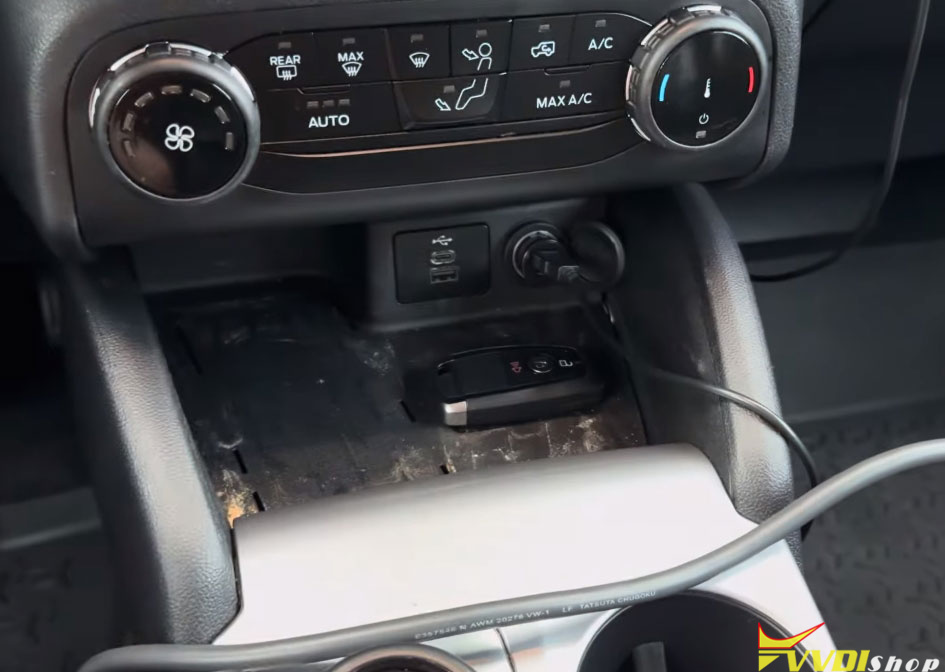
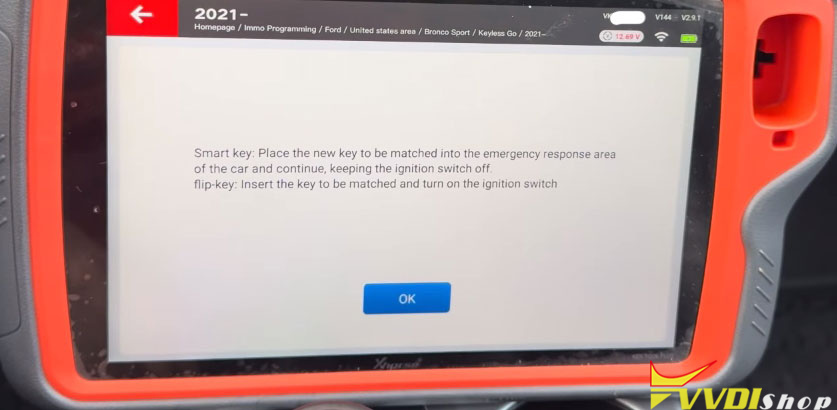
Place the first new smart key in the center console slot (the designated key slot for Bronco).
-
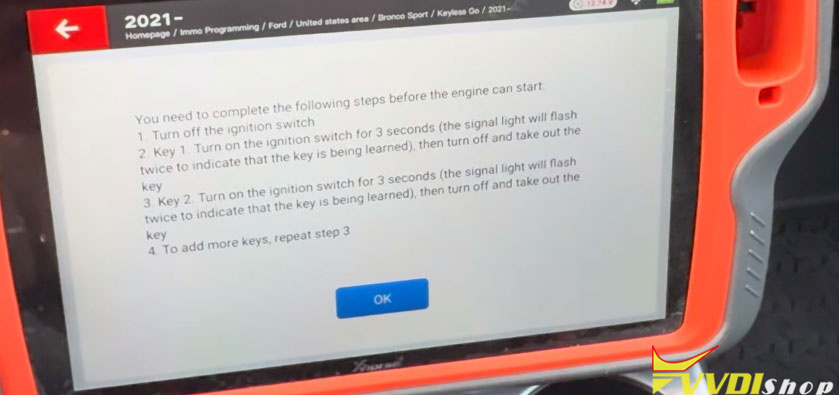
Press and hold the push-to-start button for 2–3 seconds.
-
You will hear the door locks cycle (lock/unlock sound). That confirms the first key is learned.
During this step, you do not press anything on the Xhorse tool. The tool’s job is done – the vehicle learns the key automatically when you hold the start button.
4.4 Learn the Second Key
-
Remove the first key and place the second new key in the slot.
-
Again, press and hold the push-to-start button for 2–3 seconds.
-
Wait for the door locks to cycle again.
Second key learned.
Step 5: Verify and Start the Vehicle
-
The Xhorse key tool plus will confirm the process is complete. Press OK.
-
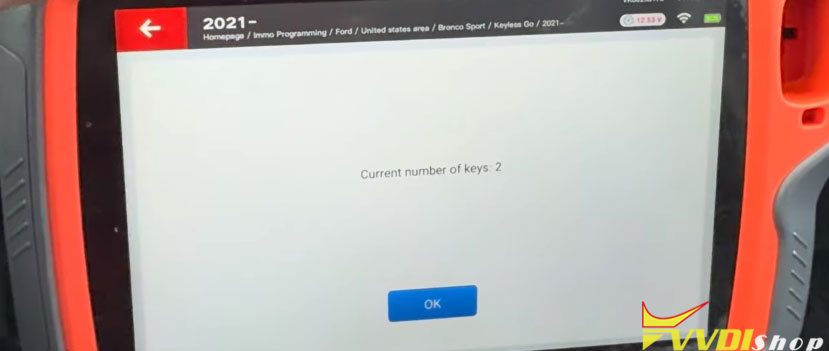
Check the number of keys stored – the tool should show 2 keys.
-
Press the brake pedal and push the start button with either key.
The engine should start normally.
Summary of Key Points
| Situation | Procedure | Keys Needed |
|---|---|---|
| Adding a key when system not full | Normal “Add Key” | 1 new key |
| System at max keys | All Keys Lost (clear first) | At least 2 new keys |
| All keys lost (no working key) | All Keys Lost | At least 2 new keys |
Ford Bronco sport (and many modern Fords) require you to program at least two keys when performing an all‑keys‑lost procedure. The system will not finish with only one key.
Troubleshooting Tips
-
D‑Flash backup fails → Check your internet connection. It must be fast and stable.
-
Door locks don’t cycle → Make sure the key is fully seated in the slot. Hold the start button for a full 3 seconds.
-
Tool shows “max keys” → You must switch to All Keys Lost. You cannot add a single key.
Final Thoughts
Programming a 2024–2025 Ford Bronco sport with all keys lost is straightforward with the Xhorse Key Tool Plus. The most important steps are:
-
Backing up the D‑Flash (good internet required)
-
Clearing all keys if the system is full
-
Learning two new keys by holding the start button
Once both keys are learned, the vehicle will start, and you’re done.