


This guide will walk you through the process of reading the Honda Activa push-start smart key PIN code in an “All Keys Lost” scenario using the Xhorse VVDI Key Tool Plus or Key Tool Midi.
Step-by-Step Guide to Reading the PIN Code
1. Navigating the Device Menu
Start by turning on your Xhorse device and navigating through the menu:
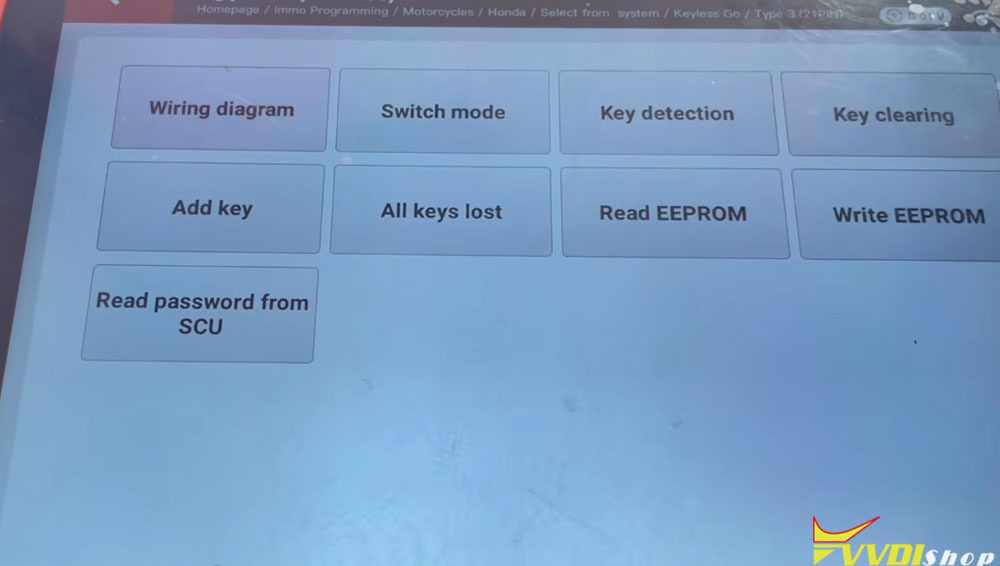
Go to Immo Programming
Select Motorcycle
Choose Honda
Select Select from System
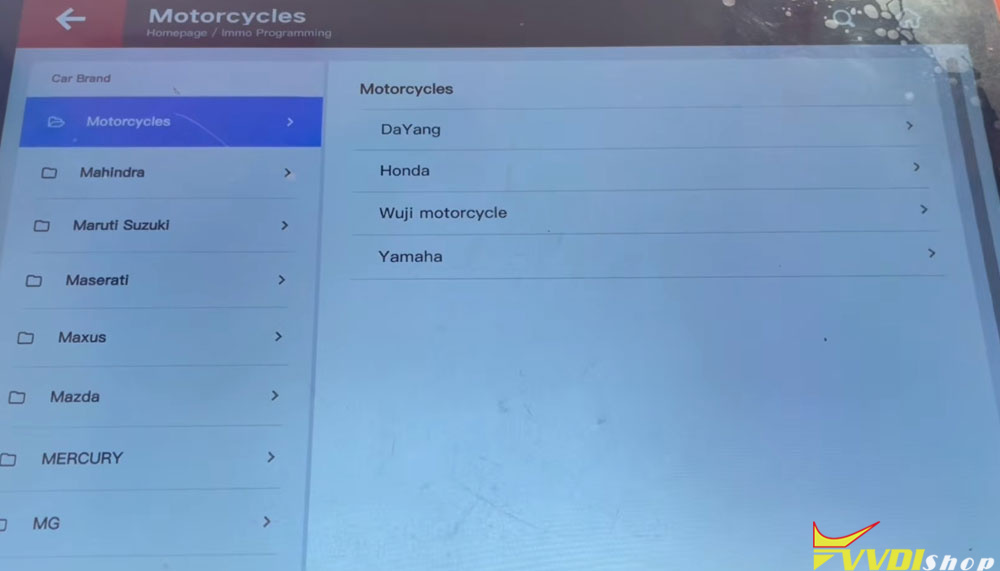
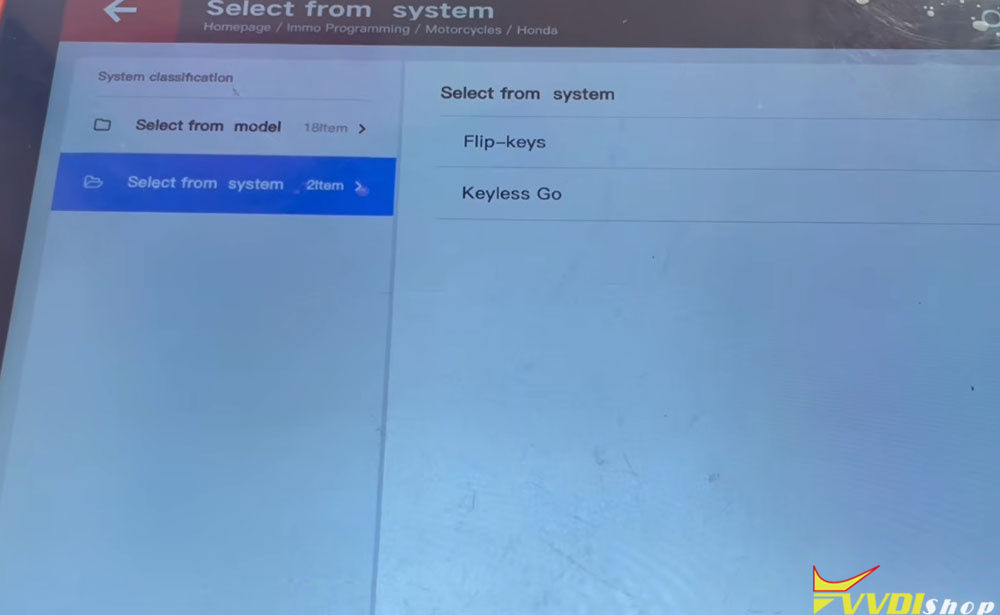
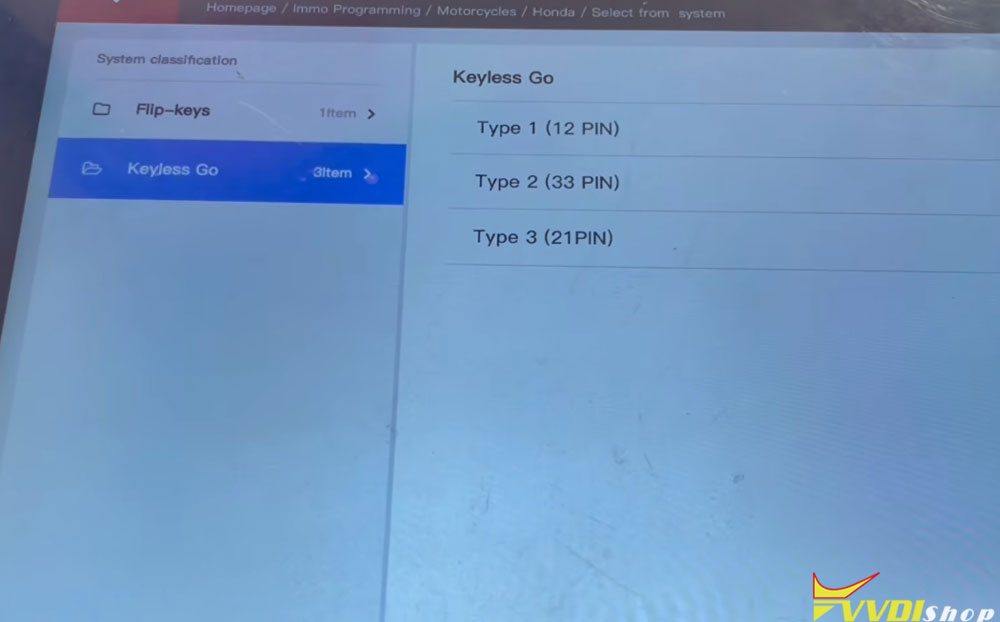
2. Selecting the Module
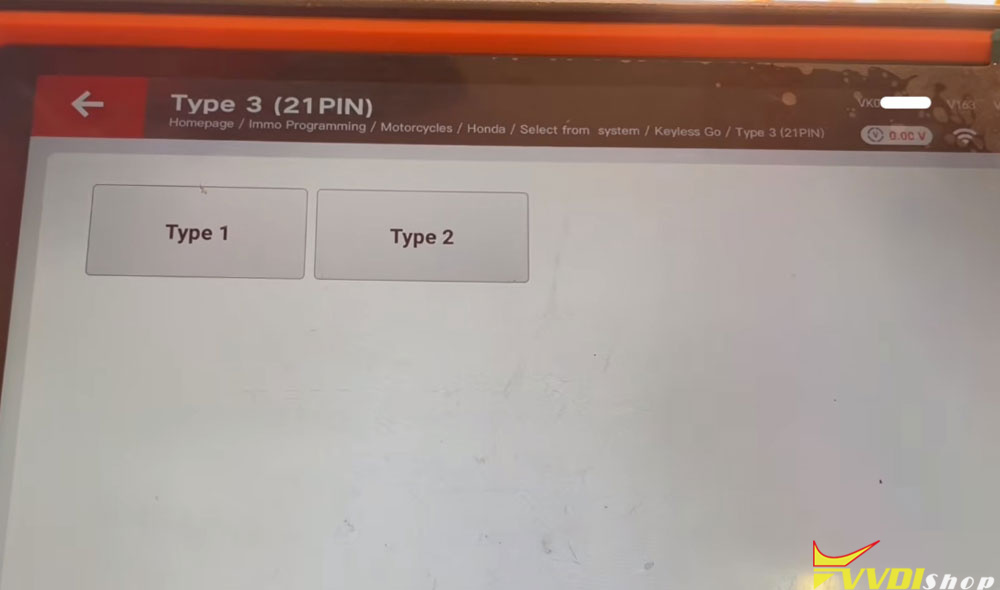
The Honda Activa i-Smart module uses a 21-pin connector. Select the 21 PIN option from the menu, then select Start Programming.
Next, select Read EEPROM and then choose Type 2.
3. Preparing the Module for Reading
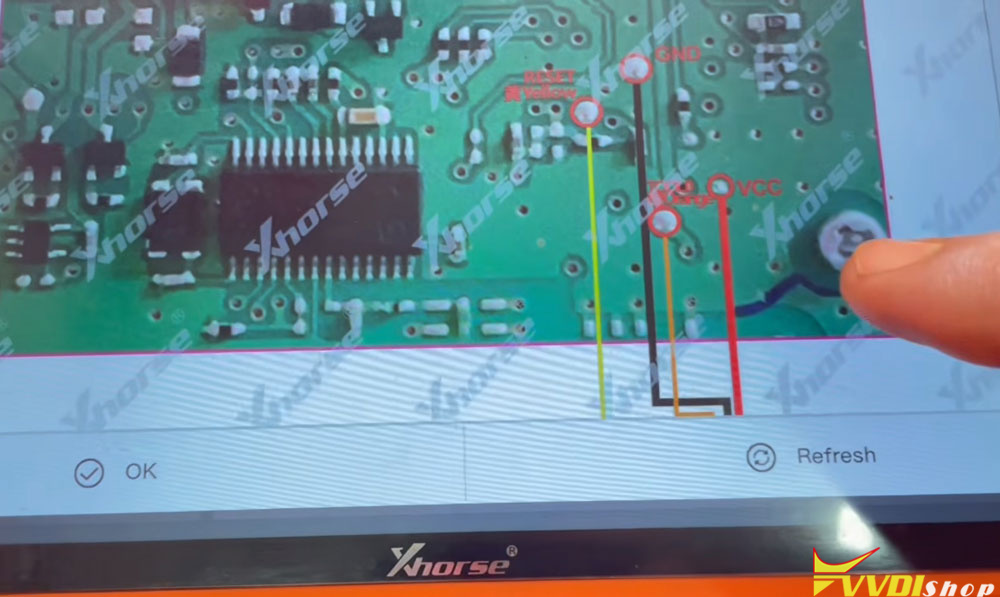
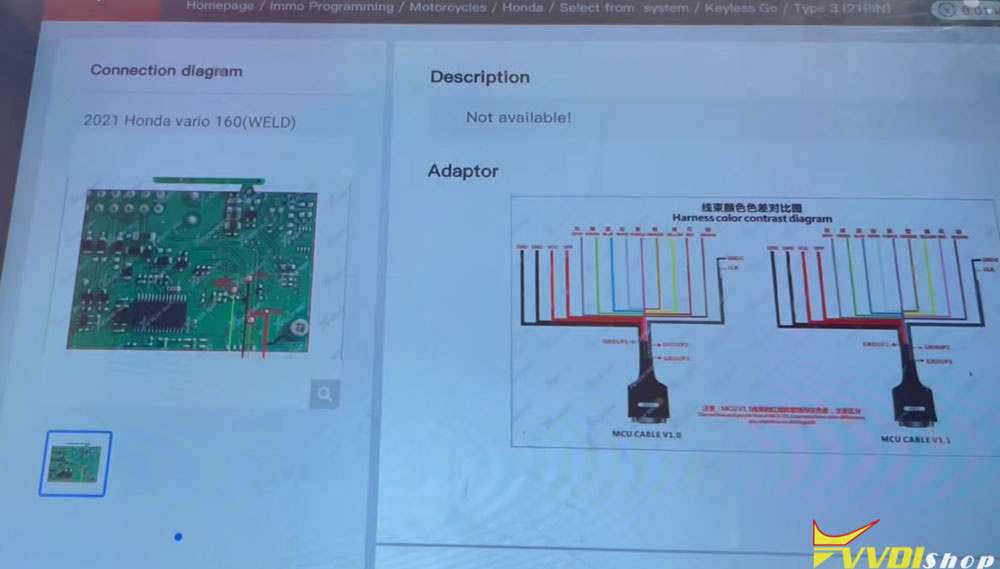
Once you select Type 2, the device will display a wiring diagram. You will need to use the MCU cable.
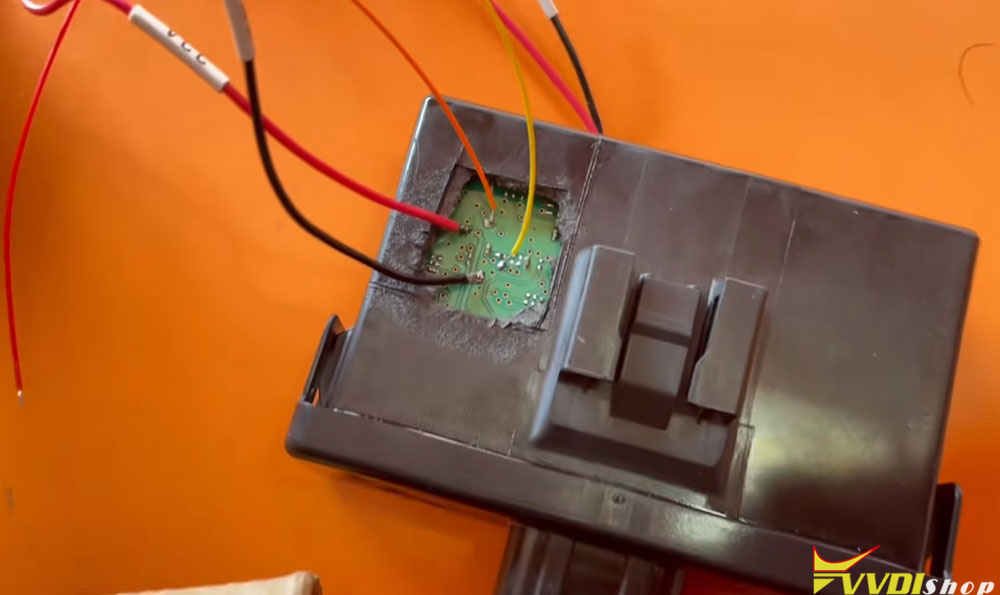
Looking at the diagram on your screen, you must identify the soldering points. The cables involved are the Red wire, VCC wire, Orange wire, Black ground wire, and Yellow reset wire. Solder these wires to the exact points indicated on the module board.
Important Warning: The module must be carefully cut out of its casing. You must proceed with extreme caution during this step, as the board contains very small resistors and components. Any damage to these components will cause the procedure to fail.
4. Reading the Data
Once the wiring is soldered and the module is connected, press Continue to begin reading the data. The machine may take some time to read the module, so patience is required.
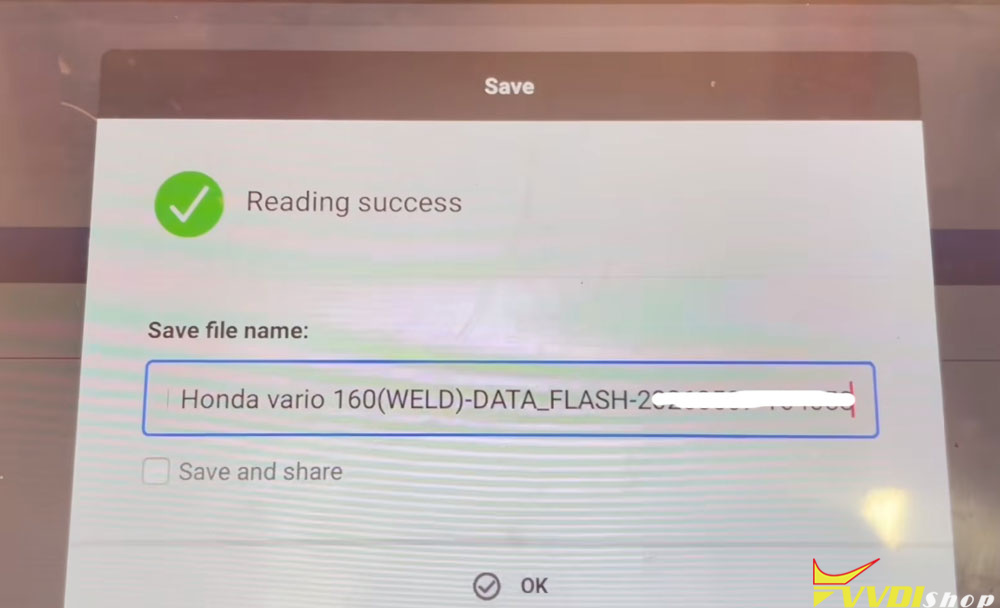
When the process is complete, you will see a “Reading Success” message. The device will prompt you to save the file. Press OK and then go Back.
5. Extracting the PIN Code
Now you need to extract the PIN code from the saved file:
Select Read Password.
Choose Type 2 (since you read the data using this type).
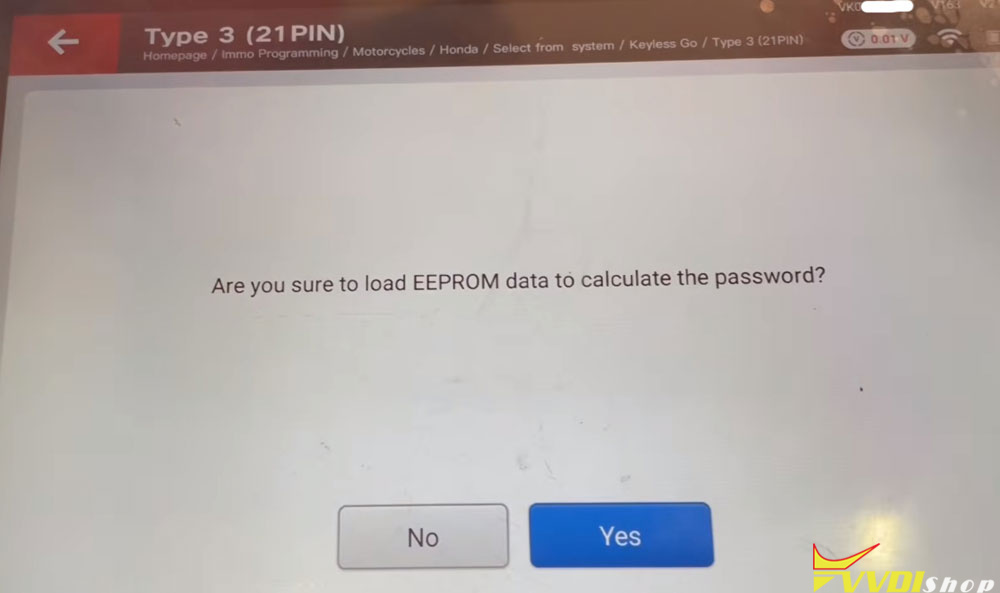
Press Yes.
Open the saved file you just created.
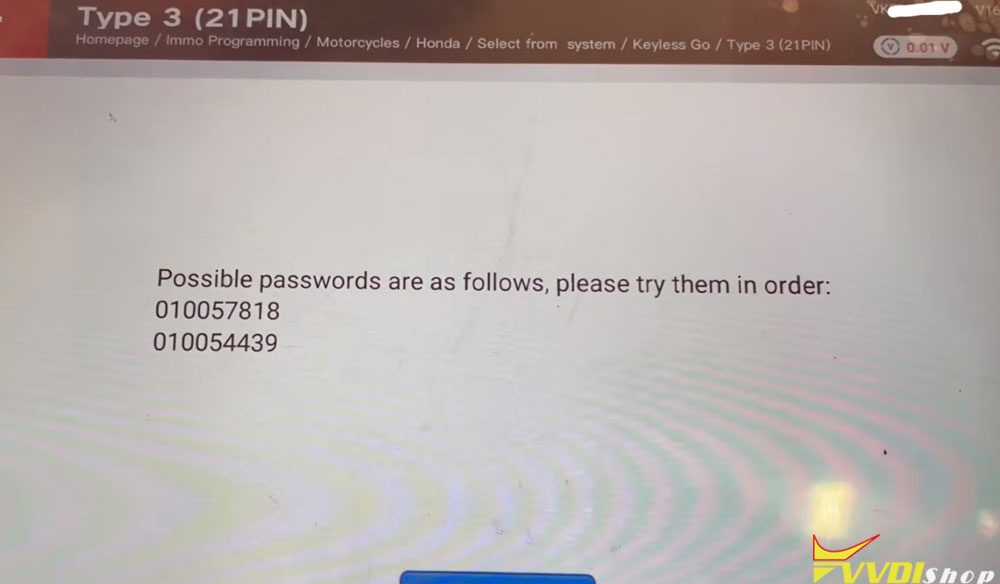
The device will now display the PIN code. It is highly recommended to take a photo of the screen and save the PIN code for your records.
As a reminder, you must cut the module carefully and solder the wires exactly according to the provided diagram. This functionality is currently available exclusively on the Xhorse Key Tool Plus and Key Tool Midi.