


Many users have seen video reviews showing an Xhorse Dolphin XP-005 seemingly recognizing a plastic key and wonder why that option is missing from their own machine.
The Short Answer: No. There is no specific “identifying plastic keys” function for the XP-005 because plastic is non-conductive and cannot be sensed by the machine’s physical probe. To work with these keys, you must follow the professional workarounds below.
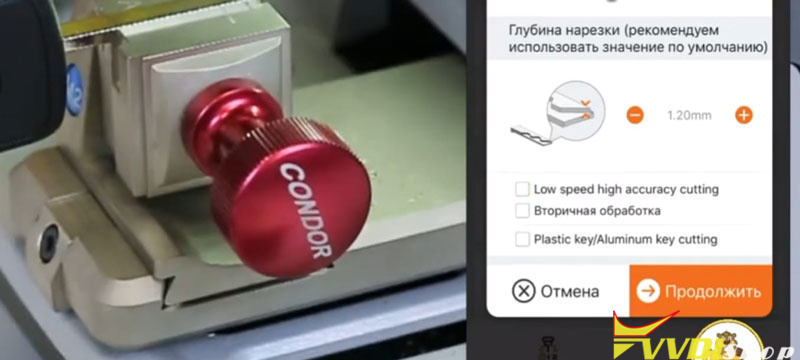
- Key Bitting Identification
Since the Dolphin XP005 cannot probe plastic, use one of the following methods to obtain the bitting code first:
- Xhorse Key Reader: Use optical imaging to scan and identify bitting without physical contact.
- Photo Recognition: Take a photo of the key within the Xhorse App to recognize the bitting.
- Manual Inspection: Visually inspect the key and manually input the bitting depths.
- The “Pause and Swap” Cutting Procedure
To cut a plastic blank, you must use a metal key for initial positioning to satisfy the machine’s sensors:
Step 1: Place a metal key blank in the clamp for initial alignment.
Step 2: Start the cutting process; once the CNC milling cutter begins running, click “Pause”.
Step 3: Replace the metal blank with your plastic key blank.
Step 4: Click “Continue” to begin the actual milling of the plastic key.
Summary Checklist for Technicians
| Feature | Support / Method |
| Direct Learning | Not Supported for Plastic |
| Identification | Key Reader, Photo, or Manual |
| Initial Positioning | Must use a Metal Key Blank |
| Execution | Pause after start, Swap to Plastic, Continue |