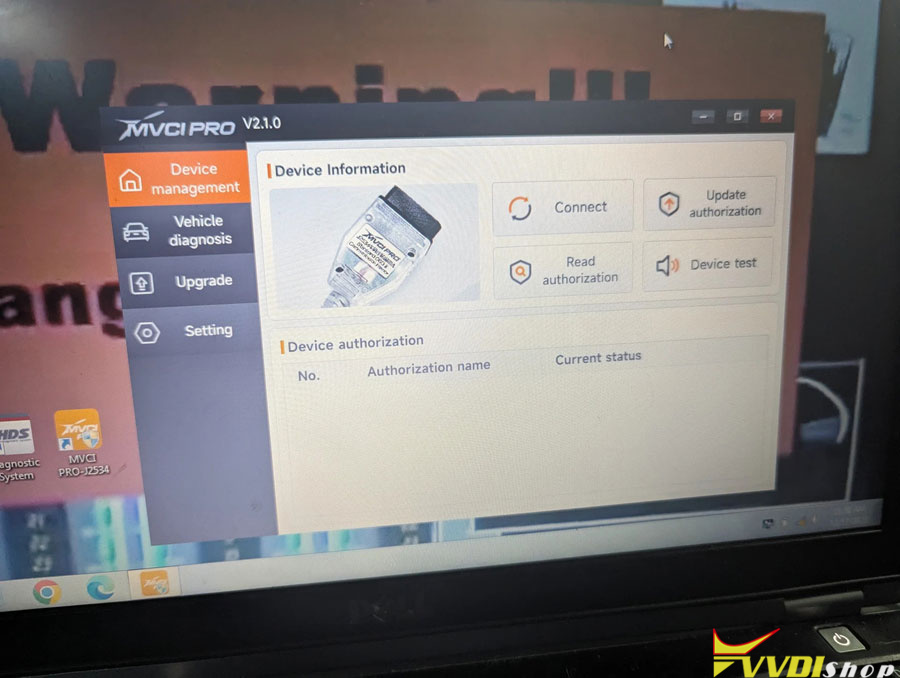



Here’s a quick guide on how to set up and use the Xhorse MVCI PRO adapter with GM Tech2Win software.
***IMPORTANT*** There are two versions of the Xhorse MVCI:
- The cheap clones you can find everywhere, usually called “Mini VCI” or “Mini VCI J2534” that are based on a very old Xhorse product that is no longer made. These are NOT compatible with Tech2Win as they do not support the D-PDU protocol.
- The much newer official “MVCI PRO” from Xhorse. Xhorse‘s website calls it “Xhorse XDMVJ0 MVCI PRO J2534 Diagnose and Program Cable”. Item No. HKSP455. This is the one that you need for Tech2Win.
How to set up and use the new Xhorse MVCI PRO with GM Tech2Win software:
- Download and install the MVCI PRO-J2534 software from Xhorse‘s website: http://dl.xhorse.com/product/mvci/MVCI_PRO-J2534.exe
- Download and install Tech2Win.
Tech2Win Collection https://mega.nz/file/xbkxWSCB#HL90PoICHOp2gpw-ODjPrESRxe6yzfcFEssfz0CRifo
- Download and install GM MDI Software from Bosch: https://www.boschdiagnostics.com/softwar…-and-mdi-2 (Click on “MDI Setup v8.5.33.154.exe” or whatever the latest version is, you don’t need “GM Launcher” or “MDI 2 Setup”)
- Connect your MVCI PRO cable to the computer and let Windows automatically install the drivers.
- Run MVCI PRO-J2534 program, click on “Update” in the left side menu, wait for it to read info from the device, then click “Upgrade” in the “Firmware Upgrade” section (Yes, it’s normal to see a current version higher than the latest, it’s some weird bug in the software). DO NOT UNPLUG THE MVCI PRO WHILE ITS UPDATING!
- Once finished updating, click on “Device management” in the left side menu, then click “Connect” (you might have to unplug and replug the MVCI PRO cable first). Once connected, click “Update authorization”.
- When that’s done, click on “Vehicle diagnostics” in the left side menu, then double-click the “GM TL/DPS” icon.
- Press “INSTALL“. Once finished, you can exit back to the MVCI PRO-J2534 program and close it.
- Now you can run Tech2Win and configure it. When it asks what interface to use, select the “MDI – USB“, then click “OK”.
NOTE: It’s important that you install Tech2Win and GM MDI Software BEFORE installing the “GM TL/DPS” drivers from within the MVCI PRO-J2534 program or it won’t work!