

What Changed with the Xhorse Gen2 Red PCB Remote?
First, it’s important to understand the upgrade. The new Red PCB remote isn’t just a color change; it represents a significant internal overhaul:
- In-House Manufacturing: Previously, Xhorse purchased ICs (Integrated Circuits) from external suppliers for the Green PCB. The Red PCB features an IC designed and manufactured by Xhorse itself.
- Improved Performance: This change results in a higher operating frequency and, crucially, reduced battery consumption. The Red PCB remote will last longer on a standard 2032 battery compared to its Green predecessor.
- Dual Connectivity: While it retains the programming socket (for wired generation), it now also supports a wireless cloning/generation option, which is the source of both its convenience and the current user confusion.
Some users reported that the cloning function not working using the new red PCB remotes.
When attempting to clone a remote using the standard “Clone” function with a Red PCB, the process fails. This has led to frustration, as the Green PCB method no longer applies.

Solution
The fix is simple but requires following a specific path in the software. Here’s how to successfully clone to the new Red PCB remote:
What You’ll Need:
- Your Xhorse key tool (e.g., Key Tool Plus, Key Tool Max Pro, Mini Key Tool etc).
- The new Red PCB remote with a fresh 2032 battery installed. (The battery light should illuminate).
- original key
The Correct Procedure:
Enter Clone Mode: On your Xhorse device, navigate to the “Remote Clone” function- “HCS/Fixed Code Clone”.
Read the Original Remote: Follow the on-screen prompts to read the frequency and button data from the original remote. You will typically press buttons like Lock, Unlock, Trunk, etc., as instructed until the device captures the frequency (e.g., 314.98 MHz).
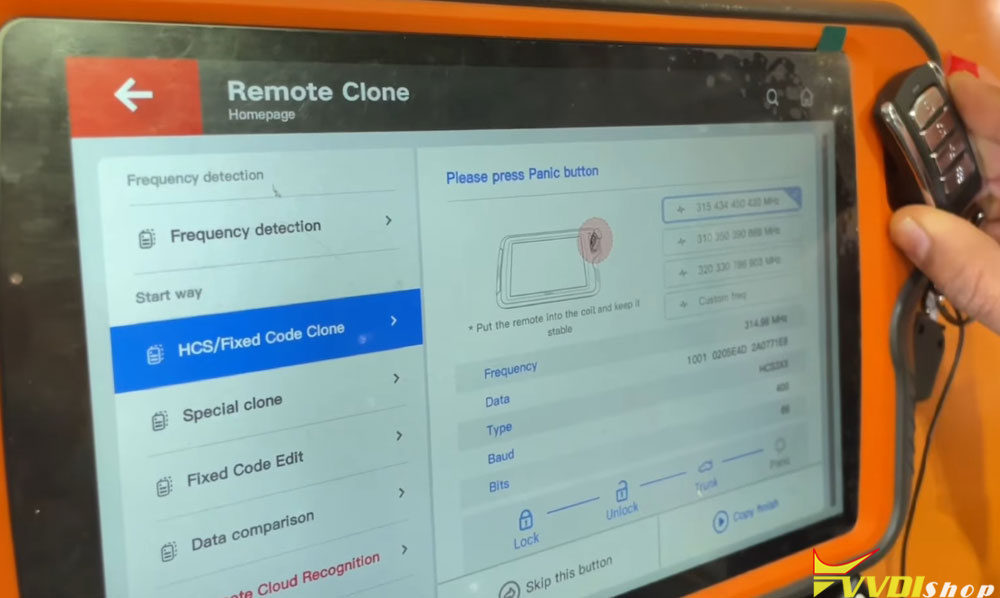
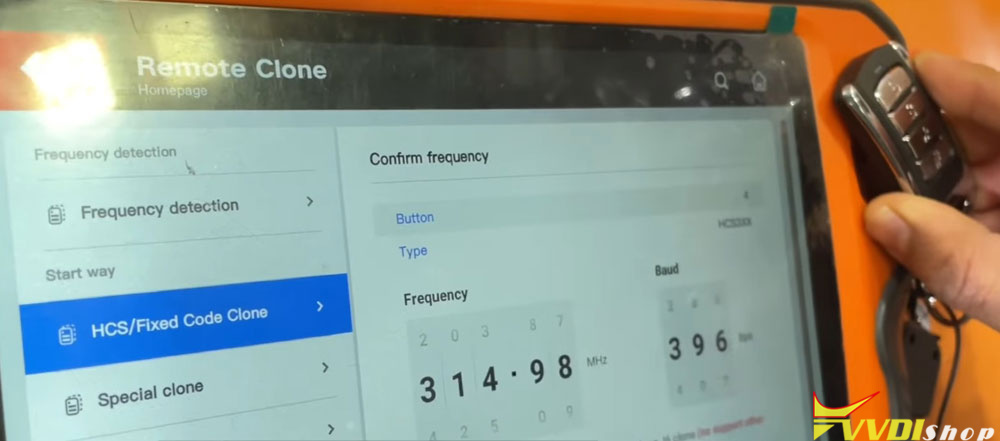
Hit the ‘Clone’ button.
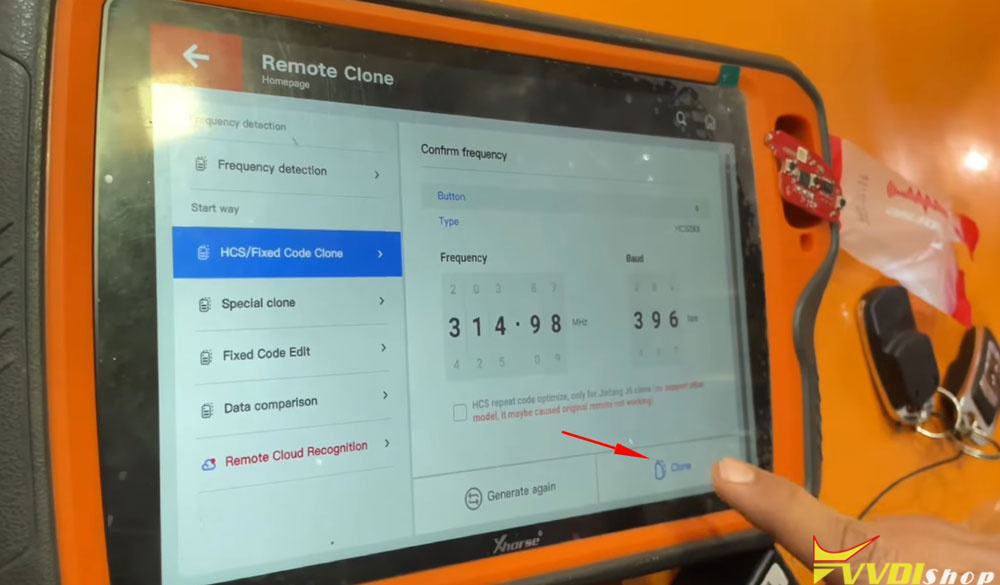
CRITICAL STEP – Do Not Use “Normal Clone”: After reading the original, you will be prompted to place the new Red PCB remote to burn/clone the data.
DO NOT select the standard “Clone” or “Normal Clone” option here.
INSTEAD, you must select the “Wireless Generation” option (only support wire remote gen2).
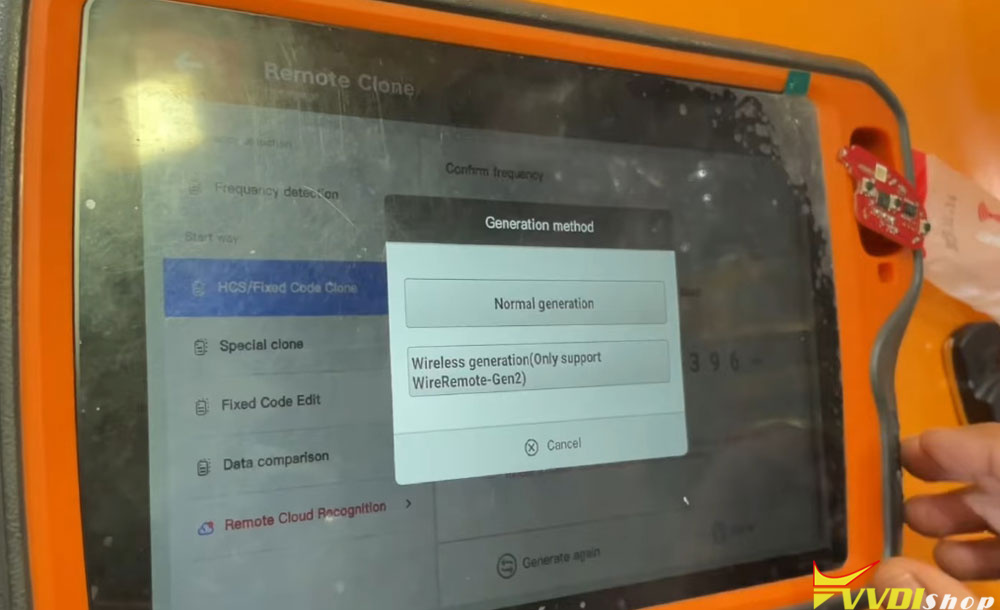
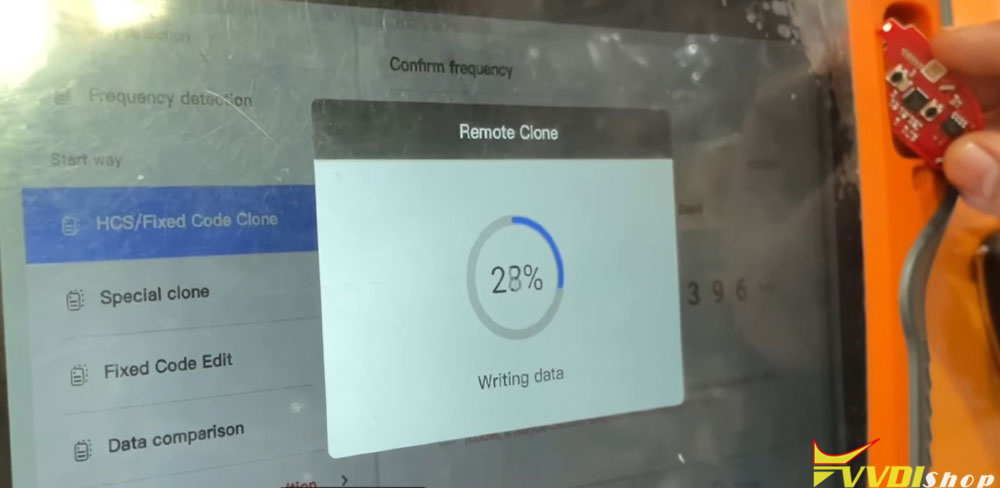
Initiate the Burn: With the Red PCB remote (battery installed) placed on the device, simply press the Unlock button once. The device will now successfully write the data.

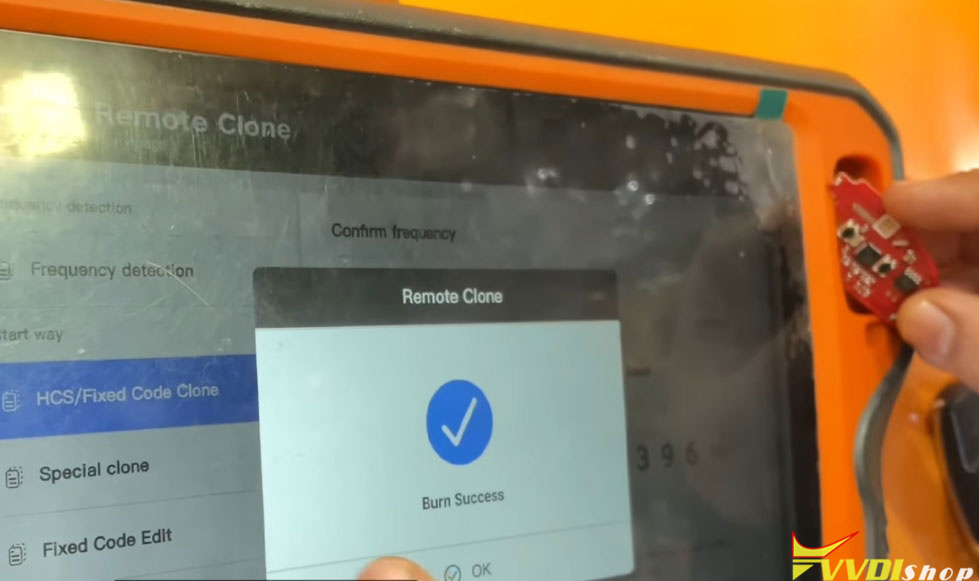
Verification: You should see a “Burn Success” or “Clone Complete” message. Test the newly cloned remote on your central locking tester or the vehicle to confirm Lock/Unlock functionality.
Key Takeaways for Professionals
- The Green PCB is being phased out. The Xhorse Red PCB Remote is the present and future for Xhorse remotes.
- The cloning process has changed. The wired socket is no longer necessary for this operation. Success depends on using the “Wireless Generation” sub-option during the clone process.
- Battery is mandatory. Unlike some wired programming, the Red PCB remote must have a battery connected for wireless cloning to work.