
This guide walks through the steps of programming an Xhorse smart key to a 2020 Toyota Tacoma using the Xhorse Key Tool Plus and the XM38 Smart Key, starting with one already working key.
Tools You’ll Need
Xhorse VVDI Key Tool Plus (with internet connection)
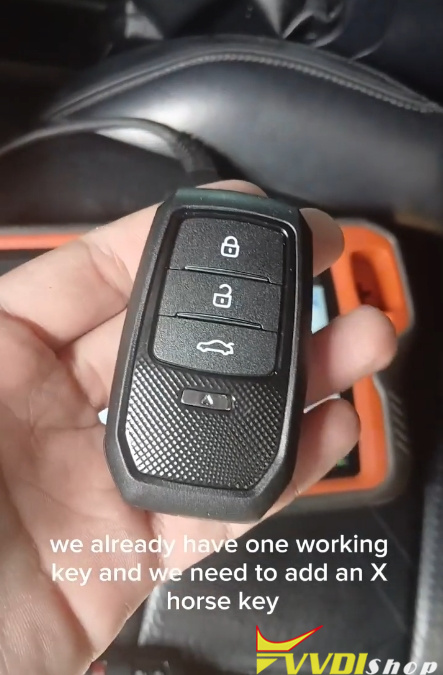
Xhorse XM38 Smart Key (or compatible Xhorse smart key)
One existing working key for the Tacoma
Step-by-Step Programming Process
1. Identify the Key Type
Begin by determining the transponder type of the original key.
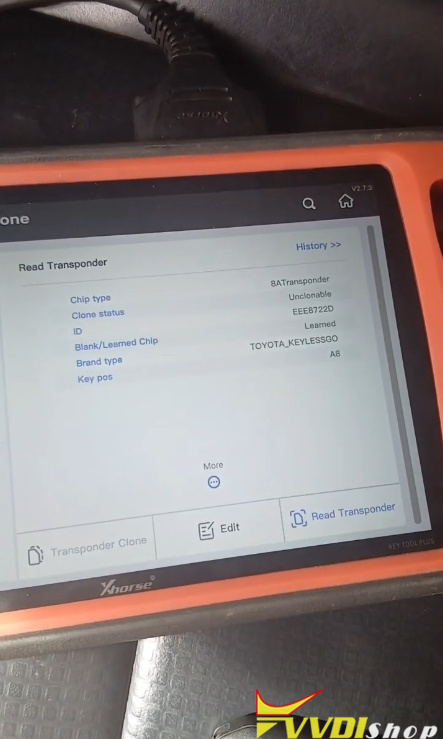
On the Key Tool Plus, navigate to Transponder Clone.
Insert the original key and select Read.
Note the type displayed—in this case, Type A8. This is essential for key generation.
2. Generate the New Smart Key
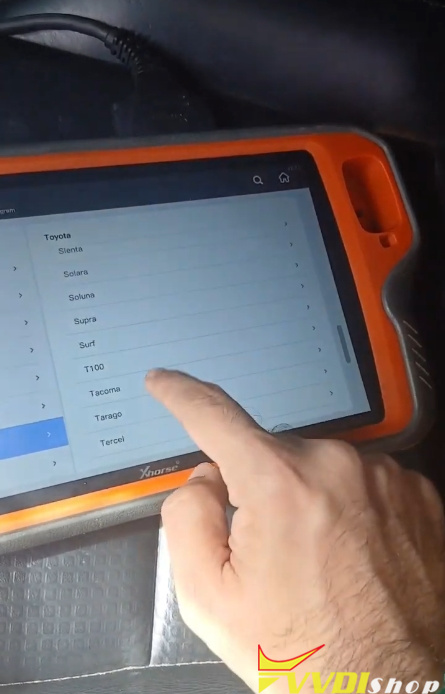
Return to the main menu and go to Remote Program > Asia > Toyota > Tacoma.
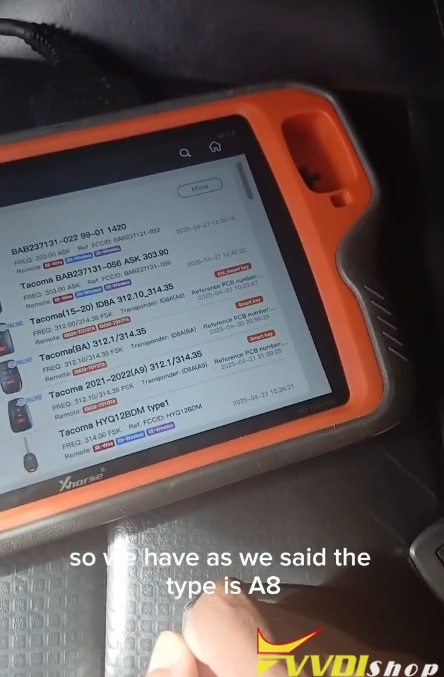
Confirm the key type matches (A8).
Place the blank Xhorse smart key on the tool’s programming area.
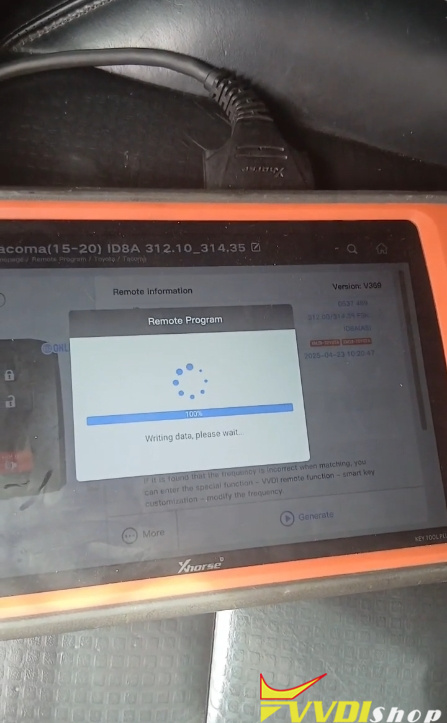
Select Generate.
Note: An active internet connection is required for this step.
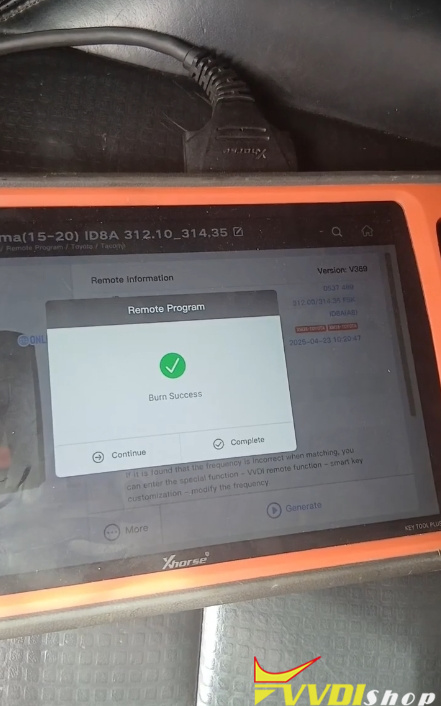
Once completed, confirm and return to the main menu.
3. Enter IMMO Programming Mode
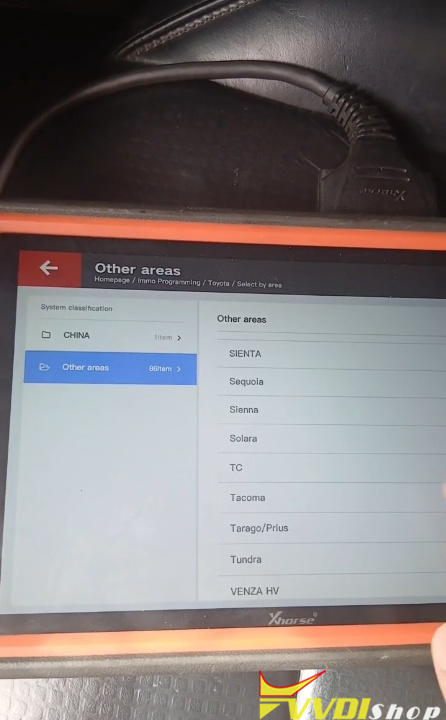
Select IMMO Programming > Asia > Toyota> Select by area.
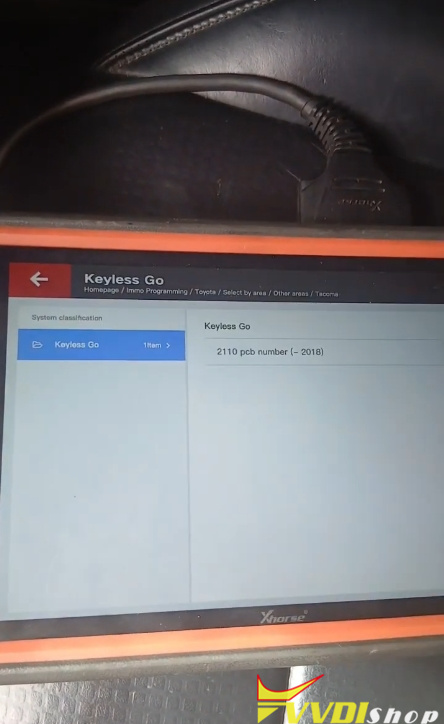
Choose Toyota Tacoma, then select Keyless Go and 2110 PCB.
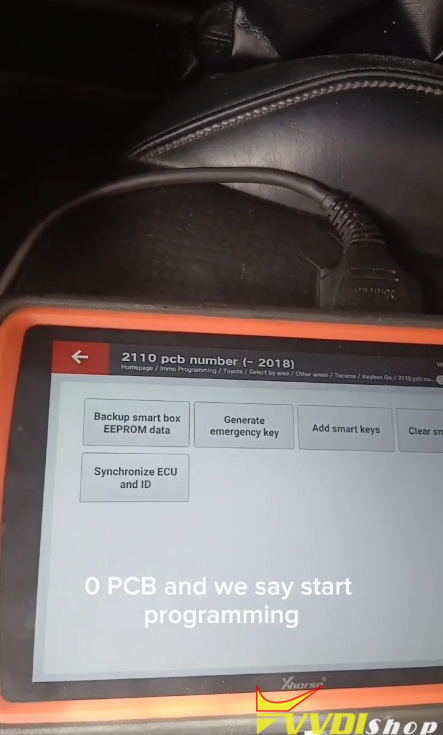
Start the programming process and choose Add Smart Keys.
Follow the prompt to switch the ignition ON using the existing working key.
4. Register the Existing Key
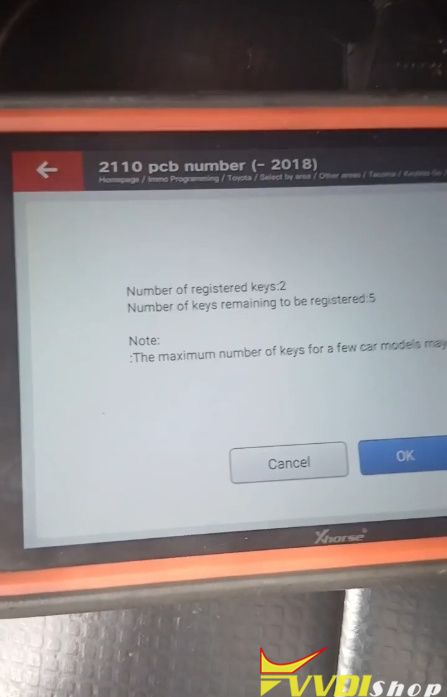
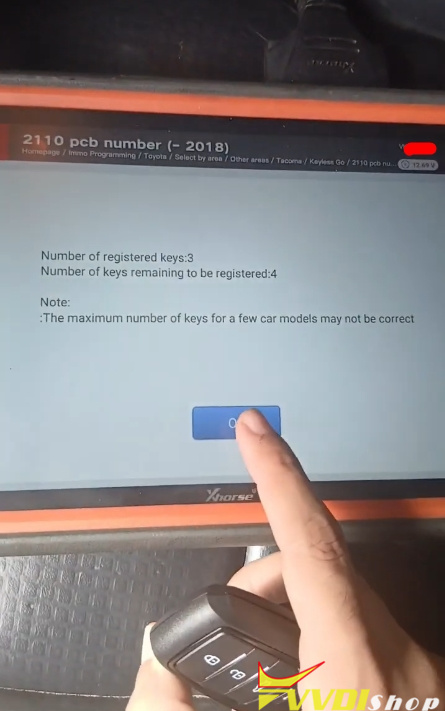
The tool will show the number of registered keys and keys to be added.
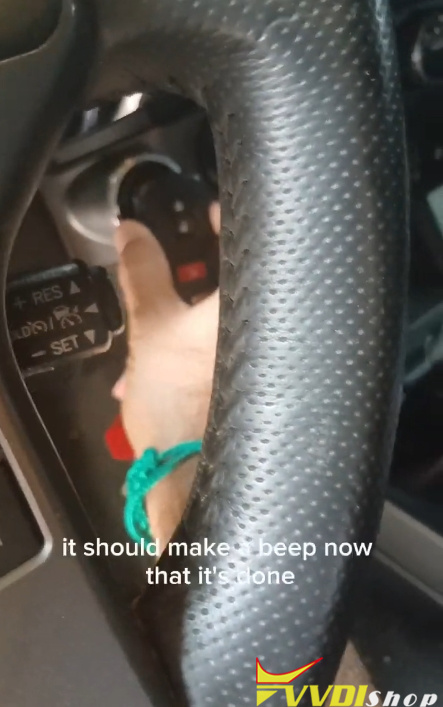
When prompted, touch the ignition switch with the original registered key.
A beep will confirm the key has been recognized.
5. Register the New Xhorse Key
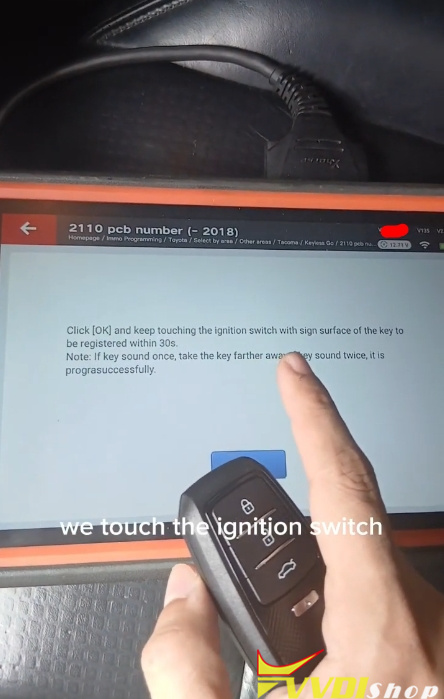
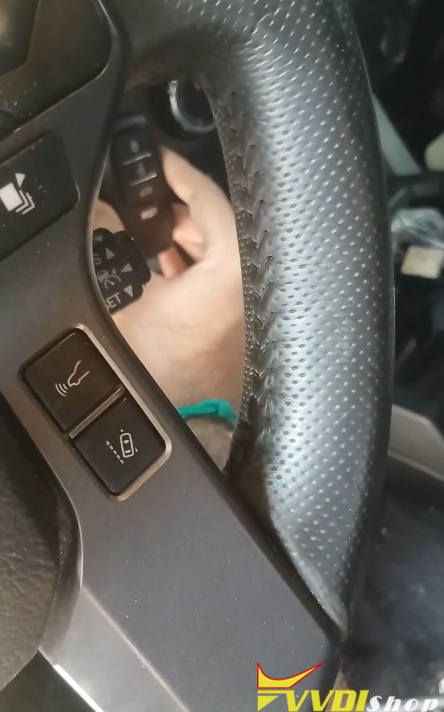
Within 30 seconds, touch the ignition switch with the new Xhorse smart key.
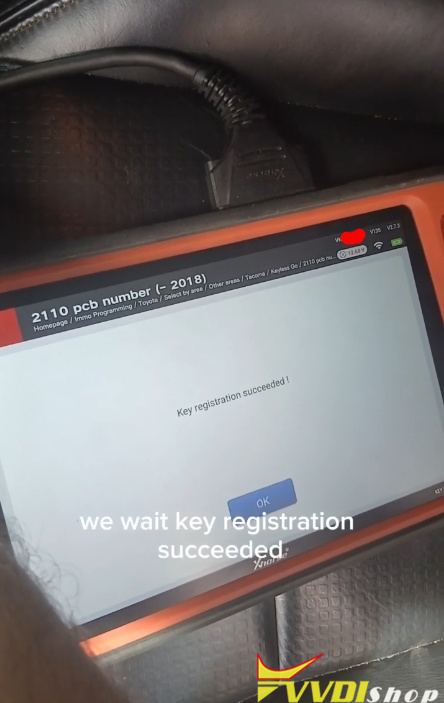
Hold it in place until the tool indicates “Key registration succeeded.”
The system will confirm when matching is complete.
6. Test Both Keys
Turn the ignition OFF and test the original key to ensure it still works.
Then test the newly programmed Xhorse XM38 smart key—it should start the vehicle.
For final verification, remove the original key from the cabin and confirm the new key operates independently.